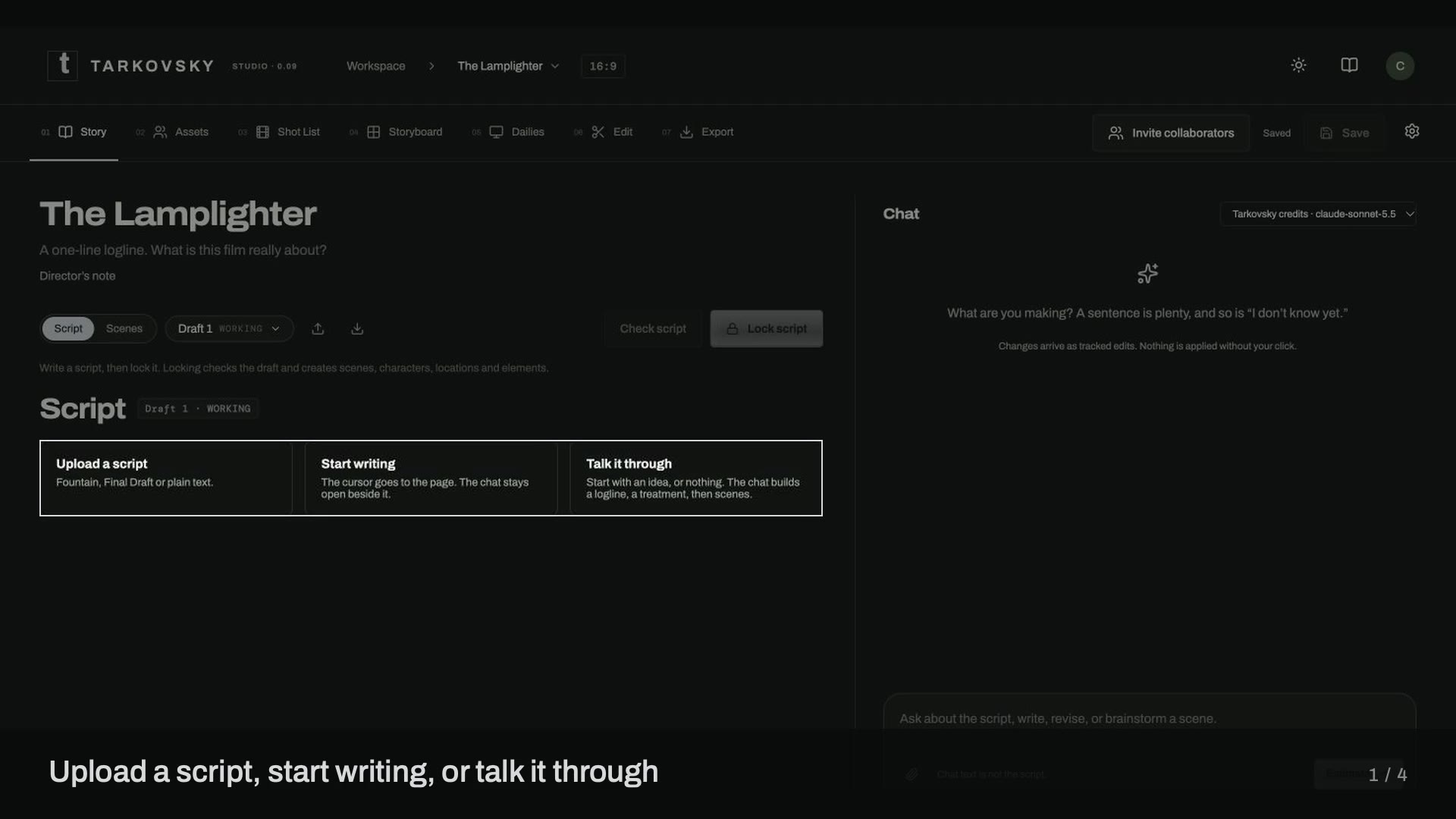
Ask about projects, collaborators, credits, models, or creative
tools. Answers use the Field Guide and include source links. Help
chat is free and does not spend Tarkovsky credits.
The assistant can explain features but cannot view or change your
account. Do not include passwords or API keys. Your question is sent
to our AI provider. Answers can be wrong; source links let you check
them. Limited to 40 questions per day.
01 / GETTING STARTED
Make your first scene.
Select Sign in. A pop-up opens over the front
page with Continue with Google and
Continue with email; both go to Auth0. Verify
your email if prompted. A new account receives 100 welcome
credits.
Open Projects, then select the
A new beginning card. Enter a title, choose a
type and an aspect ratio, and write the director’s note.
Write or import a screenplay in Story. Use
headings such as EXT. COAST — DAWN and
INT. LIGHTHOUSE — NIGHT. Select a word to tag it as a
character, element, or location.
Select Check script and fix or ignore its
findings. Then select Lock script to create
production scenes and an asset sheet for every tag.
Fill in the sheets in Assets: identity images for
characters, plates for locations, states for elements.
Add shots in Shot List. Add those shots to
Storyboard, arrange them, and lock the board.
Import footage in Dailies, or generate footage
with Tarkovsky credits or your own key. Love a take, then send it
to Edit.
Trim and arrange the cut. Open Export to render
an MP4 or download an editing file.
The previous studio version stays available at
/v0.01/. It uses the same account and the same
projects.
02 / PROJECTS
Set up the project once.
The workspace sidebar has three items: Projects,
Models, and Credits. A credit
balance box below the navigation opens Credits. Contacts & CRM
moved to Business admin at /admin for administrators.
Each project card shows a cover image (the first asset image), the
title, the logline, the type, and the date. The
A new beginning card creates a project.
New project form
Title.
Type: Film, Commercial, or Documentary. Music video is marked
Coming soon and has a waitlist.
Aspect ratio: 2.39:1, 21:9, 16:9, 9:16, or 1:1. Frame rate is set
on Export.
Director’s note.
Palette: about five named colors. Each one can be edited.
Brand guidelines, for commercials: upload a PDF or images. The
list of brand rules is checked on every shot as production notes.
References: images uploaded at creation appear in Assets ›
References with the caption “Added at setup · Look, palette”.
Project settings
Click the project name in the top bar (Projects › Title ▾ › Tab) to open
the project menu: Switch project (the other projects in production;
unsaved work is saved first), Project settings,
Duplicate project, and Archive.
Project settings is the new-project form filled in: title, aspect
ratio, type, director’s note, palette, brand guidelines for
commercials, and references with See all in Assets.
Changing the aspect ratio keeps the frame of existing stills and
takes; new ones use the new ratio. Changing the type only changes
what is shown; nothing is deleted. Select
Save changes.
Duplicate project copies every asset, shot, and take, including
media references. Archive moves the project to the Archived tab;
nothing is deleted.
Project types
Commercial. The Story tab is replaced by Brief. Same position in the strip, same stage underneath; the screenplay page is not shown. The new-project form and Project settings carry the brief fields (client, product, audience, key message, mandatories, lengths).
Single shot. One shot, no script. The strip shows only Storyboard, Dailies and Export, and the project opens on the Storyboard. One scene (EXT. SINGLE SHOT - DAY) and one shot (1A, 8 s, wide, static, described by the director's note) are made on creation. The working script holds the heading so a later lock keeps the scene.
Make this a sequence (project menu, Single shot only) changes the type to Film and brings Story, Assets, Shot List and Edit back. Nothing is deleted; the scene and shot stay.
03 / STORY
Keep exploration separate from production.
The script page
The script is a formatted screenplay page set in Courier Prime: scene headings, action, character cues, dialogue, parentheticals, and transitions. Edit it in place while the draft is working. Two views are available. Script shows the whole page as one continuous screenplay, a six-inch column with the scene number in both margins and the scene's tags in small type above each heading. Scenes is an accordion with one scene open at a time.
Tags, states and presence
A tag means one person, place or thing; a state means how it looks in a given scene. There is one LOC_DOCK; day and night are its states, and the tag reads LOC_DOCK · NIGHT in the scene. There is never a LOC_DOCK_NIGHT.
Locations come from headings. The place is the whole heading without its time: EXT. LIGHTHOUSE - GALLERY - NIGHT is LOC_LIGHTHOUSE_GALLERY; INT. SAM'S HOUSE - KITCHEN - DAY and INT. SAM'S HOUSE - BEDROOM are two places. Every room keeps its own tag.
States are the last parts of the heading when they are a time of day (DAY, NIGHT, DAWN, DUSK, MORNING, AFTERNOON, EVENING, LATE AFTERNOON), weather or a season (RAIN, FOG, SNOW, WINTER), with modifiers kept: EXT. MAPLE STREET - FLASHBACK - DAY is LOC_MAPLE_STREET · FLASHBACK · DAY; EXT. GALLERY - FOG - YEARS AGO is · FOG · YEARS AGO; a modifier in a parenthetical counts too, so DAY (WINTER) is · DAY · WINTER. CONTINUOUS, SAME, LATER and MOMENTS LATER keep the previous scene's state, skipping a flashback or dream insert. A heading with no time, or with a time word the studio does not know how to light (SUPPERTIME, SHIFT CHANGE, CHORE TIME), is asked about; until you answer, the scene takes the previous scene's state as a provisional guess (see below), and the unknown word is never part of the place.
Characters come from cues and from capitals in the action. A capitals run is a character only when an age or parenthetical follows it (ANNA (60s)), when the same name speaks somewhere in the script, when it is a group (TWO MOVERS, GUARD #1, an ANGRY CROWD), or when a comma and a description follow it (SALT, an old grey lurcher). Sign text (FOR SALE), card text (FOR ANNA) and sounds (SLAMS) are not people, and card text does not put the person it names in the scene.
Presence is recorded from the cue's parenthetical: (V.O.) is a voice-over, (O.S.), (O.C.) and (OFF) are off screen, and the tag reads CHAR_MARA · V.O. or · O.S.. A character who also appears on screen in the scene (in the action, or with a plain cue) counts as on screen. Off-screen voices go on the sound lane and their reference image is not forced into the frame.
Extras and groups are characters of kind extra (TWO MOVERS, GUARD #1, CROWD). Their sheet in Assets is marked and needs no look unless you ask for one.
A mention is not a presence. A character is in a scene where they speak (any cue, including V.O. and O.S.) or where the action names them plainly. A possessive in the action names a belonging, not the person: "Theo's cat" and "Anna's coat on the bed" do not put Theo or Anna in the scene, while "Theo comes in" elsewhere in the same scene still does. A possessive of the body is the person: "over Anna's shoulder", "Ronie's face" count as on screen. Names inside dialogue never count ("Your mother kept that key"), and card or sign text is blanked first. Where the code still tags someone who is only named on a card, in a letter or in someone's mouth, the Breakdown offers "Mentioned, not present … remove the tag?".
Elements keep the ELEM_ prefix and their states follow story time, as before. Every element you tagged once is tagged in each scene whose text names it, including plurals and possessives ("the lantern's glass", "two lanterns").
Tags without manual work (0.15). Nobody tags by hand: the server tags the current draft when a script is imported (after the clean-up) and again every time Check script runs, and the check report always carries the tags. Hand tagging is for corrections, and corrections survive every re-tagging: a tag you removed stays removed, one you added stays, a Change to, a rename or a merge is kept, and an alias accepted from the Breakdown tags the character wherever the alias appears. Open questions do not block a tag: a scene whose heading has no time of day is tagged with the previous scene's state and the location chip is provisional (the first scene without a state gets none); a name the check is still asking about (a spelling one letter off, a nickname) tags the character it points to, provisional until you answer. Lock freezes the tags into the production scenes; nothing is tagged twice.
Select any word in the script, up to 40 characters, to tag it as a Character, Element, or Location; a pill bar appears above the selection. Click a tag for its menu: Change to… (Character · Element · Location · Not a tag), Rename everywhere…, Merge into…, Open in Assets. The + chip adds an existing tag to the scene. Tagging works only while the draft is working. Tags survive every lock.
Downstream. Lock writes each scene's states and presence. Assets › Locations shows an empty slot for every state the script needs ("Night · the script needs this state"), generated from the loved base plate with Time of day, weather or season. Every shot sends the plate of its scene's state; until that plate exists, the shot cannot be generated: the Shot List, Storyboard and Dailies read "Needs: Dock · Night plate" with Create it, which makes the state plate from the loved base plate in one click (0.14; the 0.13 fallback to the base plate with a warning is gone). Projects locked before 0.13 keep their tags, with no states or presence, until the next lock.
The script toolbar
One quiet line sits above the script, under the Script/Scenes control and the draft pill. Left to right: Check script · Suggest elements (runs the Breakdown; the check panel opens and shows its progress) · Highlight: Characters · Elements · Locations · Flags (toggles; each kind has its own colour and every name of that kind's tags is coloured in the text, longest names first, plurals and possessives included; Flags colours flagged text) · Find · Find & replace · History · Cover page · Import ▾ · Download ▾ · and, at the right end, the lock state: Lock script, or Script locked · New draft once the draft is locked.
Highlight › Locations on every heading (0.16, TAR-93): a place is highlighted wherever its words appear in order, whatever separates them, so a place with rooms (INT. CLINIC - BACK ROOM - NIGHT is the one place Clinic Back Room) is coloured as CLINIC - BACK ROOM in its heading, a state after the time (EXT. PARKING LOT - NIGHT - FOG) leaves PARKING LOT coloured, a slug alone on a line that became a heading (INT. BLUEBIRD DINER - WALK-IN - NIGHT) is found with its hyphen, a possessive place (SAM'S HOUSE - KITCHEN) too, and "the parking lot" in the action is coloured as well. Before 0.16 the place was looked for exactly as its name reads (Clinic Back Room), which no heading with a dash ever contained. Characters and elements keep the exact-name rule.
Suggest elements shows what waits (0.16, TAR-94): when the Breakdown has suggestions you have not answered, the toolbar button turns the accent colour and carries the count ("Suggest elements · 3"); clicking it opens the list. The list also opens by itself when the Breakdown lands after an import, and on Lock when suggestions are still waiting (the Breakdown stays reachable under the lock summary). The count is read when the page opens and after the text settles.
The lock icon means locked (0.16, TAR-94): the Lock script buttons carry no lock icon; the icon appears on the draft pill, in the corner of the page and on "Script locked · New draft" once the draft is locked.
Find and Flags step with the arrows (0.16, TAR-94): Find jumps to the first match as you type and shows "2 of 5"; ↑ and ↓ (and Enter / Shift+Enter) step through the matches. Switching Highlight › Flags on jumps to the first flag and opens a small bar under the toolbar with the flag's note, "2 of 5", previous and next buttons; with the bar focused, ↑ and ↓ step through the flags in script order, wrapping at both ends; a flag whose text is gone is not counted.
Find opens a small bar: the query (a selection in the script fills it), the match count, previous and next (Enter and Shift+Enter; the match scrolls into view and is marked). Find & replace adds the replacement field, Replace (the current match, with the replacement previewed in place after it) and Replace all. When the query is the name of a character or element tag, the bar says "Renames CHAR_MARA too" and Replace all renames the tag everywhere: the script, the tag, its asset sheet and the shots' references follow (scene states and presence follow at the next lock).
History lists every change the studio made for you, grouped: import clean-up, fixes and Ask choices, accepted Breakdown suggestions, assistant proposals you accepted, renames and merges. Each entry has its own Undo. A text change is undone only if the lines at the recorded position still read as the change left them; otherwise the entry says "Can't undo: the line was edited since" (nothing is guessed). Undoing an accepted suggestion removes the tag it added; an accepted assistant proposal also has Undo on its card in the chat. History keeps the last 500 changes with the project.
Cover page opens a small form (title, written by, draft label, date, contact) and writes it as the Fountain title page at the top of the script (Title:, Credit: Written by, Author:, Draft date:, Contact:), replacing an existing title page. Import ▾ lists Fountain, Final Draft, PDF, Word, plain text and Markdown (Pages: export as PDF or Word first). Download ▾ is the download menu described under Drafts.
Drafts
The draft pill shows Draft N · WORKING or Draft N · LOCKED with a lock icon. Its menu lists earlier drafts for download, Duplicate as new draft, Compare with locked draft (counts of changed, added, and removed scenes), and Restore an earlier draft. Import ▾ in the toolbar creates a new draft from a .fountain, .txt, .md, Final Draft .fdx, PDF or Word .docx file; nothing is overwritten. A Final Draft file keeps its paragraph types: action after a speech stays action, headings and transitions stand alone. Download ▾ gives PDF, Final Draft, Word, Fountain or plain text; the project owner also gets Download check report .json (below). This release retains up to 50 drafts per project.
Import PDF and Word, download PDF, Final Draft and Word (0.16, TAR-45)
Import a PDF (0.16, TAR-45): a PDF with a text layer is read page by page and its text takes the same path as any upload: the import clean-up, "Reformatted N lines. Please review." and the Script check. Lines are rebuilt from the page, blank lines from the spacing, page numbers and running headers are dropped, scene numbers in the margins are kept, a speech split with (MORE) / (CONT'D) is joined again, and a title page comes back as the cover page. A scanned PDF (no text to read) is refused with a clear message: run OCR, or export the script again from the app that wrote it.
Import a Word file (0.16, TAR-45): a .docx is read as paragraphs; a speaker's name is joined to the lines under it so the check reads speech; a title before the first heading becomes the cover page. An old .doc, .rtf or .odt is asked to be saved as .docx first. Pages: the menu entry says it: export from Pages as PDF or Word, then import that file.
Download PDF (0.16, TAR-45): standard screenplay format. Courier 12; margins 1.5" left, 1" right, top and bottom; scene headings and action at the margin; character cues at 3.7"; dialogue at 2.5", 3.5" wide; parentheticals at 3.1"; transitions flush right (FADE IN: at the left); 54 lines a page; page numbers top right from page 2; scene numbers in both margins when the script carries them (#12# after the heading); a heading or a cue never alone at the foot of a page; a long speech split with (MORE) and NAME (CONT'D). An unlocked draft prints WORKING DRAFT in the page header; a locked draft does not.
Download Final Draft (0.16, TAR-45): a .fdx with one paragraph per element (Scene Heading, Action, Character, Parenthetical, Dialogue, Transition), scene numbers on the headings and the cover page as the Final Draft title page. Importing the download again gives the same text.
Download Word (0.16, TAR-45): a .docx in Courier New 12 with the same margins, indents, page numbers and WORKING DRAFT header, the cover page first.
The cover page travels (0.16, TAR-45): the title page the toolbar's Cover page form writes (title, written by, draft label, date, contact) is the first page of every PDF, Final Draft and Word download, and its draft line is the draft you downloaded: the cover's own label when it has one, else the draft's. Downloading is allowed at any time, on a locked draft too, and never changes the project; an earlier draft downloads from the draft pill's menu as Fountain, or by its id from GET /api/projects/:id/story/export/<draftId>.<pdf|fdx|docx|fountain|txt> (current for the working draft).
When the draft is locked, the page is read-only, a small lock icon sits in the top-right corner of the script page (it disappears while the draft is working), and the toolbar's Lock script button reads Script locked · New draft: clicking it duplicates the draft so you can keep writing. The server refuses to save text into a locked draft; tagging, renaming and merging wait for a working draft too.
Import: reformatted, never silently
Import clean-up is part of Check script. The check runs on the file exactly as delivered, applies the automatic fixes, and the panel opens with "Reformatted N lines. Please review." and the list of what changed, each with its line number in the uploaded file and an Undo (and Undo all). Undo is available until you edit the script. Nothing else is changed without a click. Pasted text gets the same automatic fixes.
Check script
Check script opens a panel in place of the chat. Every finding names its line and scene and belongs to one of four groups, by how it is handled:
One click — a Fix button, and Fix all where it is safe. Action caught inside dialogue (Make it action); a heading-like line that would become a speaker name (THE BEDROOM - NIGHT under INT. SAM'S HOUSE - KITCHEN - NIGHT is offered as INT. SAM'S HOUSE - BEDROOM - NIGHT: INT./EXT. from the place words or the enclosing scene, the parent place from the last house of the same kind); a time alone on its line (LATER, MOMENTS LATER, DAWN) or a sub-place alone (THE WALK-IN, THE KITCHEN), offered as a heading with the current place filled in (INT. BLUEBIRD DINER - KITCHEN - LATER, INT. BLUEBIRD DINER - WALK-IN - NIGHT) and never read as a character; a heading spelled out (EXTERIOR …); a transition at the end of a line (… CUT TO:); a parenthetical that never closes, one with no speaker above it, or one after a speaker's last line ((beat) with nothing under it: Remove it or Make it action); a character's first appearance not in capitals (Sam (40s) → SAM (40s), and all in lower case too: nora (40s), june drags the crate); a numbered place written with digits (Room 6 when the heading says ROOM SIX).
Ask — your call; the app never guesses. A character name with no line under it, or with only a parenthetical under it (RAY then (nods)): delete it, or write the line; a heading without a time of day (keep the previous scene's, or choose; EXT LAKE DAY with the dash missing offers EXT. LAKE - DAY first); an unknown time word (SUPPERTIME: EVENING?; SHIFT CHANGE, CHORE TIME: keep the previous scene's or choose); a misspelled word, with its three likeliest spellings as buttons (best first), Custom… (type the spelling yourself; Replace puts it on the line), Ignore and Add to dictionary; a name one letter off or missing an accent (Ana / Anna, JOSE / JOSÉ), renamed everywhere with one click; a nickname of a known character in the action or as a speaker (Junie for JUNE, Sammy for SAM, Nicky for NICK: Add as alias, so the nickname tags the same person; a nickname inside dialogue is speech and is never a finding); near-duplicate locations (DOCK / THE DOCKS, MAPLE ST / MAPLE STREET), merged everywhere with one click. Two different kitchens, and two numbered rooms (ROOM 6, ROOM 9), are never offered as one.
Notes — information only: CONTINUOUS into a different place when neither the last lines of the scene before nor the first of the new one show the move (rooms of one place, and a move written on the page, "she carries the box through the door", need no note); a line in capitals that is neither heading, character nor transition. Each note has Dismiss (set it aside) and Flag (a mark in the script margin until you resolve it).
Spelling. A word is flagged only when it is lower case, at least four letters, not English as far as the studio can tell (a bundled word list with a supplement of everyday modern words, inflections and agent nouns such as percolator, British spellings, prefixes and compounds) and one edit away from a word that is. Dialect and speech (ain't, y'all, gonna, lemme, a leading or trailing apostrophe as in fixin' and 'bout, a dropped g as in nothin), names and nicknames from the script (characters, places, elements), and the project's dictionary are never flagged; speaker cues and headings are never checked. Add to dictionary keeps the word for this project.
Each finding still carries its level: blocking findings would create a second character (a heading-like cue, a cue one letter off a more frequent one) and keep Lock script disabled until fixed or ignored; continuity, format and spelling do not. The check is rule-based: no model call, no credits.
The 0.15 grades, as general rules (0.16, TAR-95).
Scenes are numbered on the corrected script. The check report and the Breakdown number scenes on the script as it stands after the heading fixes (a lone LATER or THE BEDROOM - NIGHT made a heading), so a tag never lands one scene off from a suggestion; the chips on the page follow the text on screen.
A flashback's season or time does not leak forward.EXT. LAKE - DAY (SUMMER) - FLASHBACK followed by EXT. LAKE - DAY is summer only in the flashback; a heading without a time inherits only the previous scene's time of day, never its season, weather or flashback marker; DAY (SUMMER, 1998) reads as DAY · SUMMER, not as part of the place.
A month is not a character. "June 14 is circled on the calendar", "in June", "every Sunday" tag nobody; a character called June is tagged where she speaks or acts ("June waits by the gate").
A heading without its punctuation is read into its parts.EXT LAKE DAY is the place LAKE at DAY (never a place called LAKE DAY), and the formatted heading EXT. LAKE - DAY is a one-click fix, also for INT KITCHEN NIGHT, EXT. LAKE DAY and a prefix missing its period.
Misspellings inside possessives are checked.freind's is asked about with friend's first; a correct possessive is left alone.
A nickname used only in dialogue is offered as an alias by the Breakdown ("Sammy" for SAM), never as a misspelling or a second character; a nickname in the action or as a speaker stays the check's own ask.
One finding per invisible character. A zero-width space, a soft hyphen or a non-breaking space is reported once; the word it split is not also a misspelling, and a non-breaking space at the end of a line or inside a run of spaces is the spacing finding alone.
Set aside and flags
Anything you Ignore, Dismiss or Flag leaves the lists and goes into Set aside · N, a drop-down at the top of the check panel. Each item has Open (scrolls the script to the line and pulses it) and Undo (brings the finding back). Set-aside items are stored with the project by the finding's kind and text, so running Check script again, on this draft or the next, does not show them again.
A flag is a note you want to come back to. It puts a small mark in the script margin next to the first line that holds the text; hover it for the note, click it for Resolve, which removes the mark (the finding stays set aside). The Flags highlight toggle in the toolbar colours the flagged text.
Change to, on suggestions and tags
Every Breakdown suggestion card and every tag chip has Change to: Character · Element · Location · Not a tag. On a suggestion, it accepts the thing as the kind you choose (an element the model proposed, added as a character; a capitalised word the rules did not tag, added as either); Not a tag ignores it. On a tag chip it changes the kind of that tag in the scene, and Not a tag removes it from the scene. A capitalised word's Add is two buttons, Character and Element, the model's suggestion first. A "mentioned, not present" suggestion (someone talked about in a scene they are not in) has Remove the tag, which takes the character out of that scene, and Ignore, which keeps the tag. Nothing is applied without a click; every acceptance is listed under History with its own Undo.
Download check report
The project owner can download the current draft's check report as <title>-check-report.json (from the Download menu or the panel header; also GET /api/projects/:id/story/report). It holds the Script check findings of the working script (kind, line, scene, handling, text), the tags with state, presence and kind (the locked scenes' while the draft is locked, otherwise the draft's own tags, each open one marked provisional), and the counts, in the format the planted-error grader reads. It is how a graded run of the live app is recorded.
Lock script
Lock script creates production scenes, marks scenes changed since the last locked draft, creates an asset sheet for every tag that has none (characters, locations, elements; groups marked as extras), records each scene's location states and character presence, and records the draft. A summary shows scenes (changed and removed), characters, locations, elements, and what is new in Assets.
Scene identity
Scene headings identify existing scenes during a lock; when a film returns to the same heading, scenes are matched in order (the second EXT. GRASSY PLAINS - DAY with the second), so “Script changed” marks only scenes whose text changed. If a changed heading would remove a scene that has shots, the server stops the lock to protect production work. Keep the heading or remove dependent production work deliberately.
Rename everywhere and Merge into
Every tag chip's menu has Rename everywhere… for every kind (characters, elements and locations), Merge into…, Change to… and Open in Assets. Renaming replaces every occurrence in the working script and keeps the case; cue lines stay uppercase. The tag id changes with the name (CHAR_MARA becomes CHAR_NORA), and the asset sheet, the scene tags and the shots' references follow. The dialog shows what follows first: the occurrence count, the scenes, the sheet and the shots. Renaming is also what Replace all does when the Find & replace query is a character or element name. A rename has an Undo in History.
Assign to… (0.16, TAR-92): on a character tag, links this name (a nickname, a role name, a variant the script uses: Junie, the old man) to one person: one tag and one asset sheet, with the alias listed on the sheet, so the script tags that person wherever the name appears from now on. The submenu lists the other characters; the dialog says what follows. If the name had a tag of its own (scenes, a sheet, shots' references), it is folded into the person exactly as Merge into… does, and its sheet's plates, looks, references and states join the person's where they are missing; the alias goes on the person's sheet, or on the person's tag until Lock makes the sheet. The check's Add as alias and the Breakdown's alias suggestion use the same mechanism, so accepting either links the names in the same way. The tag menu shows the person's aliases ("Also: Junie, The Old Man"). The script text never changes. An assigned name wins over the engine's own reading of it: a name introduced in capitals or speaking under its own cue (YOUNG MARA) that you assign to Mara tags Mara from then on, in the page's tags and in the check's. There is no Undo in History; re-tag by hand if needed. Scene states and presence recorded by the last lock are rewritten at the next lock.
Merge into… lists the other tags of the same kind. Merging folds one tag into another: its scenes, scene tags and shot references move to the target; the target's own state or presence wins where both have one; the merged sheet's plates, looks, references and states join the target's where they are missing, its name becomes an alias of the target, and the sheet is removed. The script text is not changed (use Rename everywhere for the words). The confirmation says what follows in one line. A merge has no Undo. Scene states and presence recorded by the last lock are rewritten at the next lock; the scene tag lists change at once.
Director’s note
Open the director’s note from the link under the logline. The logline is edited inline. Write the logline, the director’s intention, and the visual language. The visual language is included in image and video prompts. Avoid including finishing effects that you intend to add later. Describe people and animals on their sheets in Assets, not here.
Chat
The chat is the right column. Its placeholder reads “Ask about the script, write, revise, or brainstorm a scene.” With Tarkovsky credits, the studio model answers: select Estimate, then Send. To use your own key, select My API key and choose a provider and model. A reply can carry tracked edits as a Proposed change · Scene N card: the text to delete is struck through and the replacement follows, with Accept and Reject. Accept applies the change to the working draft; nothing is applied without a click. An accepted card shows Undo, and the change is listed under History in the toolbar. A reply without edits can be appended to the working script. On a locked draft, accepting needs a working draft first.
The thread is saved with the project (0.15). Every message and reply, with its proposal cards and your Accept or Reject on each, is stored on the server per project and per tab, so the Story chat and every tab's Ask about pill pick up where you left off on any device, and Check script, Suggest elements, an upload or a tab switch no longer wipe them. The model reads the saved thread as the conversation (the last eight turns). The bin icon in the chat header clears the thread for everyone on the project. Owners and editors write; viewers read.
One collaborator, no modes. The chat reads what you want from each message: thinking out loud, an opinion, a request to write, or your own pages pasted in. It talks when it is unsure and writes pages only when asked; it never restates your message, opens with praise, or claims to have changed the script. On a Commercial project the brainstorming turns to the brief: seeds tied to the one message, the brand moment, nothing invented beyond the brief. The prompt lives in src/server/prompts/story-collaborator.md (with story-collaborator-commercial.md), versioned.
Ask about a tab sees its tab. On every other tab, the Ask about pill sends what the tab shows with the question, as data: the shots on Shot List (label, scene, size, lens, move, seconds, description, whether a still and takes exist), the takes on Dailies (name, shot, seconds, loved or liked, in the cut), the timeline on Edit (clips in order with trims, V2 overlays, the audio lanes), the stills per shot on Storyboard, the sheets on Assets, the finishing and cutdowns on Export, the brief on Brief. The context line under the pill's header says how many rows go with the question. Rows are capped, and the model is told to treat them as material, never as instructions.
Script coverage
Script coverage in the toolbar asks a reader for the report a studio or contest reader writes: a logline, a neutral synopsis, comments by area (premise, structure, characters and arcs, dialogue, story logic and stakes, pacing and tone, theme, visual storytelling and filmability, craft and format, market and audience), each rated Excellent · Good · Fair · Poor, up to six top notes with a soft next step, and a verdict on the script only (Recommend · Consider · Pass, with one sentence of reason). It is one reader's honest view, written so the next draft is better; the writer decides what to do with any note.
Before anything runs, a pop-up says what coverage is and shows the cost: coverage reads the whole working draft once on the studio's strongest reading model (anthropic/claude-opus-5.5 unless the admin sets coverage_model), paid in Tarkovsky credits, with the maximum shown first and unused credits released. Run coverage or Cancel. The report is saved with the project and marked with the draft it read; when the toolbar button shows a count, clicking it opens the latest report, and the panel's drop-down lists earlier ones (an earlier draft's report says so). The panel takes the place of the chat; close it to return.
Every comment and note shows sc. N chips: click one and the script scrolls to that scene and pulses its heading. PDF in the panel header downloads the report (GET /api/projects/:id/story/coverage/:id.pdf): plain and readable, with the title, draft label, date and reader model, numbered pages. Owners and editors run coverage; viewers see the price and read the reports. The prompt lives in src/server/prompts/script-coverage.md, versioned.
A pop-up beside the chat (0.16, TAR-91): a Coverage button in the chat header (with the count of reports) opens the latest report in a pop-up at the right of the page, over the chat, never in its place: the script stays in view, the chat stays where it was, and the check panel is not closed. The toolbar's Script coverage button opens the same pop-up; with no report yet, either runs coverage (the cost shows first).
A note jumps to its scene (0.16, TAR-91): click anywhere on a comment or a top note and the script scrolls to the first scene it applies to and pulses the heading; the sc. N chips still open any of its scenes.
Notes remember what you did (0.16, TAR-91): every comment and top note has Done and Dismiss; a next step sent to the chat marks the note Discussing. The state is kept on the report with the project (noteStates on the coverage entry), so it reads the same on every device and after a reload; a done note is struck through, a dismissed one leaves the list (Show N dismissed notes brings them back to read or undo). Owners and editors set states; viewers read them.
The draft has changed (0.16, TAR-91): the report stores a hash of the text the reader read; when the working draft no longer matches, the pop-up opens with a notice, "The draft has changed since this coverage was written (Draft N, date)", so the notes are read as notes on that text. Reports written before 0.16 compare by draft number.
A next step is a real exchange (0.16, TAR-91): the button under a top note sends the request to the chat as your message (it appears in the thread at once), the price is fetched and shown under "Thinking…" while the model answers on credits, and the reply follows with its proposal cards; nothing is pasted into the composer. On your own key with no model chosen, the request lands in the composer instead and the page asks you to pick a model.
Margin notes
A margin note is your own note beside the script: kept with the draft, never part of the screenplay text, never sent with a shot. Types: Note, Camera (how to shoot it), Directing (performance, blocking, tone), Change (something to rewrite) and Alternative idea. Add one from a scene's tag row (the small note chip next to the + chip puts the note on the scene heading) or by selecting text in the script: the pill bar above the selection gains Note, and the note sits on that line. A note follows its line when the text moves (it remembers the line's text); if the line is gone it falls back to the scene heading.
Notes show as small icons in the right margin of the line (a pencil, a lens, a play mark, ± for a change, a star for an idea; a count when several share a line). Click the icon to read them, Edit or delete, or Add another. Flags from Check script keep the left margin and their red mark, so the two never look alike. Notes belong to the draft they were written in; a duplicated draft starts clean. Viewers read notes; owners and editors write them, on a locked draft too.
What changed in 0.17 (round 5)
Three choices everywhere. Every finding of Check script, every Breakdown suggestion (in the panel and in the pop-up that opens on Lock), every Script Coverage note and every chat proposal offers the same three buttons: Do it, named after the change when it can be ("Change to EXT. GRASSY PLAINS - DAY", "Add the alias", "Remove the tag", "Change scene 3"; otherwise Fix or Add), Ignore, and Flag, for later. Bulk is Fix all or Add all. Every Do it goes into History with its own Undo. Skip, Dismiss, Noted, Accept and Reject are gone. A flagged Breakdown suggestion stays in the list and in Highlight › Flags until you decide; a flagged chat card stays open and can still be applied. On a coverage note, Do it is its next step (a comment's is Revise with the chat), sent to the chat; notes marked Dismissed or Discussing before 0.17 read as Ignored and Flagged.
Heading fixes whenever the script is checked. At import, at every Check script and at Lock, a heading in lower case, a slug alone on its line, a heading without a dash are fixed at once, each with a note saying what changed and why ("1 heading fixed by the check") and its own Undo in the panel and in History. An undone fix is never applied again by a later check, the Breakdown or Lock; it waits in Set aside as undone, and Bring back applies it at the next check.
One Lock. The Lock button in the toolbar and the one under the check run the same path: the check, then the lock when nothing blocks. When something blocks, the panel says what ("1 question to answer before Lock") and opens the first one, with Show me to go back to it.
A suggestion that proposes a change offers it. A heading the action contradicts ("- NIGHT" over the morning sun) offers Change to INT. KITCHEN - MORNING, editable on the card before you apply it, with Undo, Ignore and Flag.
Mood and line directions. Lock reads each writer's parenthetical as the line's direction. The scene card (Scenes view) shows the scene's Mood and every dialogue line with its direction, all editable; your edit is marked yours. The Breakdown proposes a mood for a scene that has none and a direction for each line without a parenthetical; you edit and add them one by one or with Add all, each with its Undo. On a relock a direction stays with its line; one whose line changed is kept and flagged Line changed, with Place on… to put it on a line again. The mood shows under the scene's tags in the Script view.
A change of kind sticks everywhere. Change to… Element (or Character) converts every mention in every scene, the asset sheet with its images and references, and the shots' references, in one colour, and it holds through every Check script and Lock. Undo in History changes it back.
One word, two kinds. When the same word is tagged as a character in some scenes and as an element in others, the check asks once: Every mention is the character, Every mention is the element, or Name the character: give the featured one a name and tick its mentions; those take the name in the text, the others stay the element.
Aliases are used everywhere. An alias lives on the character's sheet (Also called, and Assign to from the sheet or the tag menu). It is highlighted in the character's colour; where it acts in a scene the character is present there, and the shots of that scene send the character's reference, labelled with the alias. Script Coverage reads the alias list.
What changed in 0.18 (round 6)
The script saves itself. Changes save a moment after you stop typing, and at once when you switch tabs, hide the page, leave it or press Cmd+S (Ctrl+S). A status sits beside the script and in the top bar: Saving…, Saved 12:04, or Couldn't save, retrying with Retry now: a server or network failure is retried on its own, on a growing delay, until it lands, and your changes stay on the page meanwhile. A refusal the server will repeat says Couldn't save with the reason and tries again at your next change. When another session saved first, saving stops and the status says Another session changed this project with Reload: it loads the latest version and puts your changes back on top; where the other session changed the same thing, it asks first, and if you keep theirs your version of the script is downloaded so nothing is lost. Nothing is ever overwritten without asking. The Save button stays, but nothing depends on it.
The find bar stays in view. It is pinned at the top of the script while the match it jumps to scrolls to the middle of the page. Whole word finds "one" alone, not in cone, gone or someone; Match case tells ONE from one. The count, the marks and Replace all follow both.
Do all in the Story chat. When a reply proposes several changes, Do all (4) sits above the cards. It makes them all as one change: one line in History, one Undo (on any of the cards or in History). Each card keeps its own Do it, Ignore and Flag; a card whose text is no longer in the script is left open and the message says why.
A text change carries its tags. When a change made for you (a chat proposal, Do all, Replace or Replace all) replaces a tagged name with another, "the sedan" becoming "the pickup truck", the tag moves in the same change and the same Undo: when the old name is gone from the script, the tag is renamed and its asset sheet, scenes and shots' references follow; when it is still used elsewhere, only the scenes the change touched are retagged (a scene that still names the old thing keeps both tags), and once the last mention goes the sheet takes the new name too. Nothing moves on a guess: a pronoun ("It pulls away"), a rewrite, or two different replacements leave the tags as they were.
The chat sees the tags. The Story chat reads each scene's tags (as the page shows them) and the aliases, and can propose tag changes as cards: PROPOSED TAG CHANGE · SCENE 1 with "ELEM_SEDAN → ELEM_PICKUP · everywhere", applied with Do it (also on a locked draft, as tag edits are). A text proposal can carry its own tag change. The chat says what it checked rather than "done" or "nothing to change" about what it cannot see (images, shots, sheets). The Ask pill on other tabs gets text edits only.
An answer that could not be used says so. A chat reply that came back empty, a Script Coverage report that could not be read, and a Breakdown run that was cut off say Didn't run with the reason, and Retry; nothing is saved and nothing is charged. They never look like a clean result.
The Breakdown takes you to the scene. A suggestion's scene numbers, its quoted words ("“Someone left the gate open”") and a direction's quoted line are links: the script scrolls there and the words stay highlighted until the next link or Escape. The list docks beside the script, at the right of the page, so the line and the open suggestion are seen together.
Asset cards say "1 state", not "1 states".
An editor that types like Final Draft (TAR-152): its model was built in 0.18; from 0.19 it is the page's editor (below).
The editor that types like Final Draft (0.19)
The script page types like Final Draft. Final Draft keys in the script toolbar is on by default and remembered in this browser; click it for Plain text, the editor before 0.19, where each line's type is read from its words. Both save the same Fountain text through the ordinary save.
Every line has an element you set: Scene Heading, Action, Character, Parenthetical, Dialogue, Transition, Shot. It is shown as screenplay formatting and kept with the script, never guessed again from the words. The element menu in the toolbar shows the element of the line the caret is in and changes it. An empty line shows its element's name in grey until you type.
Enter at the end of a line opens the next element: after Action, Action; after Character, Dialogue; after a Parenthetical, Dialogue; after Dialogue, Action; after a Scene Heading, Action; after a Transition, a Scene Heading. Enter on an empty line changes its element instead of leaving a blank line behind, as in Final Draft: an empty Dialogue becomes Action, an empty Character becomes Dialogue. Enter inside a line splits it; Shift+Enter breaks the line inside its paragraph (a speech on two lines).
Tab at the end of a line: after Action, a Character line; after a Character, a Parenthetical (with its brackets, the caret inside them); after Dialogue, a Parenthetical. Tab on an empty line cycles the elements: Action, Character, Parenthetical, Dialogue, Transition, Scene Heading, Shot, and back to Action; Shift+Tab goes back.
INT., EXT., I/E or INT./EXT. at the start of a line makes it a Scene Heading (never "Into" or "Extra", and never inside a speech). Scene headings, characters, transitions and shots are in capitals as you type. A heading typed in the middle of a scene starts a new scene; the caret goes with it.
Autocomplete. On a Character line, the script's characters and the other names it knows them by, and the character sheets, are offered by their first letters; on a Scene Heading, the script's places and the location sheets after INT. or EXT., and the times (DAY, NIGHT, DAWN, CONTINUOUS…) after " - ". Enter or Tab takes the highlighted one, the arrows move through the list, Esc closes it.
A Shot is stored as a line in capitals that names the camera (CLOSE ON, ANGLE ON, POV, INSERT, BACK TO SCENE, or a line ending in a colon), so every Fountain reader keeps it.
Bold, italic, underline: Cmd+B, Cmd+I, Cmd+U (Ctrl on Windows) on the selection. They are kept in the script as Fountain emphasis (bold, *italic*, _underline_), printed in the PDF and Word downloads and written as Final Draft text styles; Check script, the tags and the Breakdown read the words without the marks.
No automatic (CONT'D). A (CONT'D) you write, or one in an imported script, stays as written.
Undo and Redo: Cmd+Z and Cmd+Shift+Z step back and forward through your typing, the keys and the element menu, the caret going back to where the change was; a scene that a new heading split comes back whole. Changes made for you (fixes, Replace, the chat) are undone in History.
Moving around: the arrow keys move from the last line of a scene to the next scene and back. Paste brings in the pasted lines with their elements.
Find, flags, margin notes, the Breakdown's links and tagging by selection work in both editors: every line keeps its place in the script.
The stored form is Fountain. A line carries Fountain's forcing mark only where its words alone would read as another element: a heading without INT. or EXT. starts with a period (.FLASHBACK - THE LAKE), an action that would read as a heading, a transition or a camera line starts with !, a name that would not read as a speaker with @, a transition the pattern does not know with >. The marks are not shown on the page. Check script, the tags, the Breakdown and Lock read them: the same script with and without them gives the same findings and tags, and a fix keeps a line's mark and its bold.
Final Draft import keeps the elements. Each paragraph's type in the .fdx file becomes the line's element (with the forcing mark where needed) and its bold, italic and underline become Fountain emphasis.
Breakdown: suggestions from the model
The Script check panel has two lists. Script check is code: instant, free, the same result every time. Breakdown is the model: it reads every scene and suggests what takes judgment. Nothing it suggests is applied until you accept it.
What it suggests. Elements with a type (Prop, Wardrobe, Vehicle, Animal, Set dressing, Effect) for things the camera must recognise across scenes; element states (whole and cracked, clean and lit); wardrobe that leaves the body or is worn by more than one person; a character written as if new who is really the same person at another age (a look); aliases (a full name, a role, "the woman in the photograph"); people who act in the picture but were never written in capitals; a state the action adds to a place that the heading does not carry (rain, snow, a flashback); and a heading that contradicts its own action (DAY, but the stars are out).
When it runs. Once on its own when you open Script check on a draft that has no suggestions yet, and whenever you press Suggest elements. It runs in the background; keep writing. The list opens when it is done, usually in under a minute.
Free, on our model. The Breakdown runs on Tarkovsky's platform key with our strongest model (Claude Opus via OpenRouter), not on your credits or your key. Results are saved per draft: the same script never runs twice, and reopening the panel costs nothing. Each account has a daily allowance (ten runs by default); past it, the button says so and works again the next day.
Add and Ignore. Each suggestion has Add and Ignore; the list has Add all and Ignore all. Add writes the same tag you would make by hand: an element tag in its first scene (the engine carries it to every scene that names it), a state or a look on the asset once it exists (before the lock, the hint is stored on the tag and carried over at lock), an alias on the character so later tagging matches that wording, a character tag for the person never written in capitals, a state hint on the location for that scene. A heading contradiction is information: Noted marks it read; the heading stays yours to change. Ignore remembers your answer for this project, so the same suggestion does not come back on the next run. Added suggestions are not shown again either.
A word in capitals the code could not place (0.14). When the action has a lone word in capitals that is not an introduction, a sound, sign or card text, emphasis or film grammar (a VULTURE circling, a HOVERBOARD in the corner), the code lists it for the model and the suggestion reads "VULTURE: character or element? · scene 4", with the model's answer and reason. Only words the code listed can be suggested; BANG, FOR SALE and CUT TO are never offered.
Mentioned, not present (0.14). The model sees, above every scene, who the code tagged there and how (on screen, O.S., V.O.). Where one of them is only mentioned in that scene (named on a card or a letter, in a photograph, spoken about), it suggests "Mentioned, not present: Anna in scene 10 — remove the tag?". A character who speaks in the scene, with any cue, is present; V.O. and O.S. count as presences; the model is told to stay silent unless the text makes it plain, and a suggestion for someone the code did not tag in that scene is dropped before you see it.
Small things and changes to a body (0.15). The model now sweeps every scene for objects that come back, however small (a notebook, a lighter, a ledger, a jetty the characters stand on), and for lasting changes to a person or an animal (a cast, a dressing, clipped fur, a protective collar), before it decides anything. A recurring object the action handles or singles out is suggested as an element; a change to a body or an appearance is suggested as a look of that character, from the scene it happens in, so every later shot carries it. The sweep itself is kept with the result as the record of what was considered.
What it will not do. It does not tag locations, times of day or speaking characters (the code has them), does not report spelling or formatting (Script check does), and is told to leave one-off props, background business, sounds and sign text alone. Two things that share a word are kept apart.
Reading a suggestion. The chip names the kind, the scenes it rests on follow, the bar is the model's confidence, and the line under the headline is its reason, written for a filmmaker. Low confidence means "check this", not "wrong".
Names the script ties to a person (0.18). A role or a description is offered as a character's alias when the action uses it in place of the name, when someone is called by it, or when the script itself ties it to the person: the introduction gives it, before or after the name ("Her daughter, LILY (8)", "ROY (50s), the night clerk"), the person is introduced in a costume or a uniform, or a figure first seen without a name is later named ("The hooded figure is Marcus"). The code offers these itself; the model is asked to sweep every other wording of every character before it suggests anything, and a wording it judges an alias in that sweep is suggested even when it forgot the card. Words anyone may be called (Sir, Honey, Dad), a role two people share and a role said once in passing stay quiet. Accepting an alias tags the person wherever the wording appears, so a figure described in an early scene gets the person's reference there. An alias rests only on scenes where the person is there, seen or speaking: a wording that only names someone heard from another room, the source of a sound, or someone spoken about who is not in the scene is not offered for that scene.
Names that hold everywhere (0.19). A surname, a full name, a title with a surname ("Sergeant Lund") or a role the person's introduction or costume gives them ("the night porter", someone introduced "in a referee's cap") is an alias wherever the script uses it, in the action or in dialogue, even once, and even in a scene the person is not in. The card says so ("only named in scene 4: no presence there"): Add links the wording to the person, and a scene they are only spoken of in never puts them in the picture. "My mum", "your brother" and "our gran" are said relative to whoever speaks, so they are never offered, however often they are said; the narrator's "her uncle" in the action can be. A character we already know who arrives later described but unnamed ("a tall man with a muddy spaniel", after we have only heard him on a speaker) is offered as that description's alias for the scene. A place's state is a look the action states that changes the whole place or what can happen in it (hail, a flooded floor, smoke filling a yard): "the storm has passed" or "not a breath of wind" is not offered as a state, and neither is a detail on one surface, such as a frosted pane or a dusty shelf. A person's own name with an age ("young Mara", "Mara (8)") is offered as a look, never as an alias; a full name ("Mara Kell") stays an alias.
For agents: POST /api/projects/:id/story/breakdown queues the job (owner or editor; 429 past the daily cap, 503 when the platform key is absent), GET returns {result}, {pending} or {none} for the current script hash. The prompt is versioned at src/server/prompts/breakdown.md; the version is stored with every result.
One thing, one name (0.18)
Script check, the Breakdown and Lock compare every character, place and element with the others. Two names for one thing ask once: "Pickup and Pickup Truck: the same vehicle?" with Merge into… and Keep separate. Merge into keeps the other name as an alias of the one you keep, so later mentions are tagged as the same thing; the script's words are not changed. Keep separate sets the question aside for this project.
The reverse: one word for two things. When an element is tagged by a bare word ("jacket") and the script also uses that word for something else ("a leather jacket", "another jacket", two people's own), the check asks "Is every “jacket” the work jacket?" with Split: the word stops tagging the element and the other thing gets a tag of its own.
Before Lock. These questions are among the ones to answer before Lock: Lock says how many and takes you to the first.
A vehicle you are inside and see from outside is asked about once: as one vehicle, the element takes the name of the place inside it (the pickup truck element and the PICKUP TRUCK heading), so its look agrees in both.
Places. A place written short in one heading and in full in another ("INT. PICKUP" and "INT. PICKUP TRUCK") is offered as one place; merging it rewrites the short headings only. A room of a place (HOUSE - KITCHEN) is never merged into the place.
People. A first name and the full name of one person who both speak (ANNA and ANNA DALE) are offered as one person, unless the script keeps them apart (each introduced, together in one sentence, talking to each other). A part (GUARD and HEAD GUARD) and a look (SAM and YOUNG SAM) are never asked about.
One question per problem. What Script check already asks about (two of the project's own tags, two spellings of one place, a split) is not asked again in the Breakdown; the Breakdown offers the merges its own suggestions bring. Two things that only share a bare word ("the truck") are never merged, and a toy or a picture of a thing is never the thing.
Naming. The Breakdown names an element by the fullest wording the script uses for it ("work jacket", not "jacket") and keeps the shorter wordings as its aliases; two of its suggestions for one thing become one, with the merge offered as an alias of the element.
A heading's qualifier is not part of the place. In "INT. PICKUP TRUCK - MOVING - DAWN" the place is PICKUP TRUCK and the time DAWN. MOVING, DRIVING, ESTABLISHING, POV, MONTAGE and the like are, like CONTINUOUS, neither the place nor its time. A sheet made under the old reading keeps its images at the next Lock.
A correct (CONT'D) is not a finding. "HOWARD (CONT'D)", with one space and in capitals, is a cue extension: the check leaves it alone and the character is Howard. Only a malformed one is fixed, and written correctly rather than removed: "THEO(CONT'D)", "RAY (cont'd)", "(CONTD)" or a non-breaking space become "THEO (CONT'D)". Tarkovsky never adds a (CONT'D) itself.
03b / BRIEF
Write the spot before you shoot it.
Brief and script (Commercial)
Fields: client, product, audience, key message, mandatories. Lengths are chips, :30 / :15 / :06, several at once. The longest length times the shots; cutdowns belong to Export.
The picture and sound table: rows S1, S2, … (up to 60). Picture is what the camera sees, sound is what is heard. Add row, remove, move up and down. Everything saves with the project.
Build shot list makes one shot per picture line. If the project has no scene yet, the brief is written into the script as INT. SPOT - DAY with the picture lines and locked, so a scene exists and every tab reads the same production script. Each row remembers its shot (shotId); running it again updates those shots' descriptions and sound instead of duplicating them. Rows without a picture line are skipped. Removing a row does not delete its shot. The button reads "Update shot list" once rows are linked.
Draft from brief opens a side panel. Tarkovsky credits show an estimate first (Estimate, then Draft); your own key needs a provider and a model. The writer returns four to six proposed rows as cards: Add row appends one to the table, Reject keeps it out, "Accept all remaining rows" takes the rest. Nothing is added to the table or the shot list without a click.
Server: POST /api/projects/:id/brief/quote and POST /api/projects/:id/brief/draft (edit role required; credits need the quoted ceiling or the call answers 409).
Commercials: Products, Talent, Locations, Elements, Brand, References. Talent sheets are character sheets (identity angles, looks, wardrobe, voice). Locking the script still creates Talent sheets from speaking parts; CHAR_ tags are kept.
Products (commercials)
Packshot. Upload the client's packshot on the sheet. It is attached as a reference to every generation of that product.
Label text. Type exactly what the label says. The badge "Checked on every generation" means: after a packshot still arrives, the writing model reads the image and compares the label with this text.
Turnaround. "Turnaround · estimate" quotes four angles (front, three-quarter, side, back) and, when label text is set, the label check per angle. The button then shows the total before anything runs. Three jobs run at a time; press again for the rest. Each angle can also be generated alone from its tile through Imagine.
Label mismatch. A still whose label did not match shows a red "Label mismatch" chip with what the model read. It cannot be loved until you press "Override". A still generated while the page was not armed (for example after a reload) shows "Check label"; the price appears before the check runs. "Re-check" runs it again.
A label check is quoted before it runs (about two credits ceiling with the default writing model, one image included; the usage receipt is what is charged and the rest of the hold is released). It runs on Tarkovsky credits; your own key is not supported for the vision step yet.
Love the packshot that goes into every shot of this product. Liked packshots are alternates.
Brand (commercials)
The Brand category page carries the brand rules with the badge "Checked on every shot". Rules are sent as text with every still and take of the commercial.
Draft brand rules. Estimate, then draft. The guidelines PDF from Project settings is read first (its text is extracted on the server; scanned or embedded-font PDFs cannot be read, and the note says so, in which case your typed notes are used). Drafted rules arrive as review cards with a category and a rule; Accept adds one to the project, Reject drops it. Up to thirty rules.
Brand assets (logo, type specimen, colour chip) are images you upload or generate as references; attach one to an asset to send it with that asset's generations.
Looks and Arcs (characters and talent)
A look is hair, wardrobe, age and a scene range ("1-4, 9"). Add one when a character changes across the story.
The Arcs strip orders looks by their first scene. Pick a scene at the top of the sheet to see which look (and how many images) a shot there sends.
A look's images are the identity images for its scenes; without a look the identity angles are sent, front first. The references attached to the asset ride along after them. Four images travel with a job.
A look needs images before shots (0.14). A look defined for a scene with no images yet holds the shots of that scene: they say Needs: Ana · Winter coat look with Open in Assets, since a look is made on its sheet. A character with no looks at all is covered by its identity images.
Extras (0.14). A group marked extra (DOCKERS, TWO MOVERS) needs no look sheet. When it is tagged in a scene with two or more shots, the Shot List offers Extras reference · Dockers · scene N → Make it: one image of the group in that place and state, sent with every shot of the scene. It is kept on the group's sheet per scene (sceneReferences).
Wardrobe, clothes only. Each look has a wardrobe tile that generates the outfit alone on a neutral mannequin or flat lay, following the project palette.
Locations
One place, several states (0.13). A location is one tag; day, night, rain or a flashback are its states, read from the scene headings (EXT. DOCK - NIGHT is LOC_DOCK in the state Night). The loved plate is the base plate and covers the state of the location's first scene. For every other state the script needs, the sheet shows an empty slot ("Night · the script needs this state"); it drafts that plate from the loved plate with the same prompt as Time of day, weather or season, so the place and camera stay and only the light changes. A plate made this way remembers its state, and shots in that state send it. States are required before shots (0.14): until the plate exists, the shots in that state cannot be generated; the Shot List, Storyboard and Dailies say Needs: Dock · Night plate and offer Create it, which makes the same plate from the loved base plate in one click, cost shown first. Nothing stands in for a missing state.
Reverse angle. With a loved plate, the tile drafts the opposite view (camera turned 180 degrees, same place, same light) using the loved plate as the reference. It arrives as an alternate; love it to use it.
Elements
Every state has a scene range ("Scenes, e.g. 1-4, 9"). Pick a scene at the top of the sheet and the state active there is outlined and labelled "Active · scene N". States follow story time: a flashback uses the earlier state.
A state needs its image before shots (0.14). A shot in a scene whose active state has no image cannot be generated; the shot stages say Needs: Lantern · Out and Create it drafts the state from the element's image in one click, cost shown first.
References per asset
Every sheet except References has "References for this asset": pick from project images and uploads or upload new ones (up to twelve). They are sent with every generation of that asset, after its identity images, within the four-image limit.
Describe people and animals on their sheets, not in the director's note. The note travels with every still and take, so a sentence like "Salt, an old grey lurcher" in the note puts the dog into scenes he is not in; a description on Salt's sheet reaches only the scenes that tag him (learned on The Last Light).
Model drafts
Available on every category, including Products, Talent and Brand. Questions come first (saved to the director's note), then one editable prompt per sheet without an image, with the cost quoted on the card. Nothing is generated without your click.
Also called (0.16, TAR-92)
A character, talent or element sheet carries the other names the script uses for it: nicknames, role names, a surname. "Assign to" on the Story page and the Breakdown's alias suggestions write them here; the line is editable on the sheet too (comma-separated). Every alias tags the same sheet wherever it appears.
Delete and rename
Delete removes the sheet. Media files stay in the project (Uploads). "Delete and untag every scene" also writes a removed tag for each scene so the next lock does not recreate the sheet.
Rename replaces every occurrence in the working script, keeping each occurrence's case; scene tags follow. A locked draft keeps its text.
0.17: Voice and Temperament, Assign to, nothing grey without a reason
A character sheet's Voice is a description in words ("a low, dry baritone, unhurried"), sent with every take where the character speaks: the video model speaks the line in that voice. Non-speaking marks a part without lines. Temperament (the old Personality field) is sent with every take where the character is on screen or speaks, and the chat reads it. Talent sheets on a commercial keep the voice picker.
Assign to on a character sheet makes another character's name a name of this person: one tag, one sheet, its scenes and shots folded in.
A plate slot that needs a loved plate (a state, a variation, the reverse angle) and a product turnaround without a packshot no longer grey out: a click says what is ready, what is missing, and offers the fix in place (love the first plate, make the base plate, upload the packshot).
What changed in 0.19 (round 7): the looks as the arc, wardrobe elements, plates without headings
The looks are the arc, in pictures. A character sheet shows every look side by side in story order, without opening a card: the Base look first (the identity images, for the scenes before any change), then each look in the order of its first scene. Each look shows its images, its clothes-only image and the wardrobe elements it wears, and is labelled with the scenes it covers: the scenes the character is in where stills get that look (the same rule the Shot List uses), or the look's own range when the character is not in those scenes. The scene picker at the top outlines the look that scene gets. Click a look to open its card below and edit it. The Wardrobe · Default, clothes only section shows the clothes-only images and the wardrobe elements the sheet has.
A look can wear wardrobe elements. On a look's card, Add a wardrobe element… lists the elements of type Wardrobe (the ones the Breakdown says this person wears come first). A linked element shows its image in the look. The element's image is shared: the same jacket is the same jacket in every shot. When a keyframe's character is in that look, the still is sent the element's image too ("Work jacket · element · worn by Ana"), and so is the take; it needs no tag in the scene. The look's own images and its clothes-only image are made with the element's image attached. The element's sheet says which looks wear it.
One garment, one link. When two elements are one garment ("Work jacket" and "Jacket"), linking keeps one, the fuller name. Merging the two (Merge into…) leaves every look wearing the one kept. Deleting an element takes it off every look.
Four references, and what does not fit is said. A still takes four reference images, ranked by what its frame shows (0.19, TAR-192): the people first, in their look at that moment, then the things the frame names, then what the people wear, then the scene's set reference (the place's plate until the master has a loved still), then the rest. A keyframe made from the one before it has three left. When the frame shows more than fits, Check shot list names what is left out ("… the still's 4 references are full, so the Work jacket's image is not sent"), and a worn element with no image yet is listed with who wears it.
A look or a state can begin inside a scene (TAR-192). On a look's card, Begins says where the change starts: at the start of its first scene (as before), at a beat of that scene, or at a keyframe of one of its shots (a coat put on in the middle of a scene). Stills and takes of that scene follow it from there; the frames before it keep the look the scene starts with, and the Arcs strip says "Begins in scene 3 from beat 5". An element's state has the same menu (a key set down mid-scene). A look with no images yet holds only the shots whose frames are at or after its start.
No heading in the picture. A plate, a still and an extras reference are sent the place as a description: the location sheet's name and description, inside or outside, and the time of day as light ("Hardware Store, an interior, at night"). The scene heading's text (INT., EXT., CONTINUOUS, the slugline) is never sent, since image models print it as a caption. Every plate ends on the no-text rule. The still prompt is still-prompt.md v4.
Featured extras. A person promoted to a featured extra (in Dailies) shows Featured extra on their card and sheet. They get their own reference images and looks like a character, so they are the same person in every shot, and are sent their own image, never their group's. They have no lines.
Empty fields say what goes there. The character sheet no longer shows examples that read like data. Also called says "Other names the script uses for them", Age "Age as seen on screen", Hair "Hair in this look", Temperament "How they behave, and under pressure", Voice "How the voice sounds". A look with no wardrobe of its own shows the default wardrobe as a drafted value, marked "drafted from the default wardrobe": its images are made in it until you change it.
05 / SHOT LIST
Plan intentional coverage.
Shot List
Rows (0.11). Each shot is one compact row, as in the prototype: the label, its spec tags (size, move, length, sound when not sync, From 1A when it continues), the description and the first dialogue lines, with the first frame (and the last frame, when chosen) on the right. Click a row to open it for editing; click its header again to close it. A new shot opens straight away. Clicking a frame opens the shot on the Storyboard.
First and last frames (0.11). Open a shot and look under Frames. Continue from 1A’s last frame starts this shot’s take on the previous shot’s last frame (the previous shot in film order: scenes in order, shots in their list order); until that shot has a last frame, its own loved still is used. Last frame picks one of the shot’s stills for the take to end on; make the still on the Storyboard first. On Dailies the preview says Start frame: 1A’s last frame and End frame; the last frame is sent only to models whose catalog lists a last frame, and its price (when the model publishes one per frame image) is in the estimate. Other models say End frame not supported by this model and the take runs from the start frame alone. Self-hosted Lambda takes use the start frame only.
What a shot row holds. Every shot has a label (1A, 1B…), a description, and spec tags: size (ECU, CU, MCU, MS, MWS, WS, EWS, OTS), move (static, push-in, pull-out, pan, tilt, track, dolly, crane, handheld, steadicam, whip pan, rack focus), a Label in frame toggle, and sound (sync, MOS, VO). Older shots keep their long-form size and move names until you change them. Duration is in whole seconds, 1–60.
Label in frame. When on, generated stills ask for a small slate with the shot label in the corner. Off by default.
Sound.sync means production sound recorded with the picture, MOS means no sound (music or effects later), VO means voice-over. Dailies uses this to decide whether a take needs audio.
Dialogue from the locked scene. The right half of each row lists the dialogue lines of the scene, parsed from the locked script. Click a line to add it to the shot; the shot keeps the lines as SPEAKER: text, one per line, and you can edit them. The first line becomes the subtitle in the animatic. Lines already in the shot are greyed out.
Voice slots. Each shot has up to three voice slots, chosen from characters marked Speaking in Assets. A warning appears while you write when a shot has dialogue from more speakers than slots (split the shot or cut lines), when fewer slots are filled than speakers, or when no slot matches a speaker's name.
Still thumbnail. The thumbnail on the left is the shot's loved still. Click it to open the Storyboard on that shot. A count appears when a shot has more than one still.
Needs before shots (0.14). A shot whose location, character or element is in a state for its scene without an image yet cannot be generated. The scene header shows Needs before this shot can be generated: Dock · Night plate with a Create it button, and the shot row carries a Needs · Dock · Night plate tag. Create it makes the state image from the loved base image in one click, through the same quote-then-generate path as the Assets sheet, with the cost on the button before it runs: a location state is the Time of day, weather or season variation of the loved base plate (same place, same camera, only the light changes), an element state is drafted from the element's image. A character look needs its sheet, so the button reads Open in Assets instead. The same line appears under Imagine on the Storyboard and above the take panel on Dailies, and their generate buttons read Needs: Dock · Night plate until the image lands. A scene with no states (locked before 0.13) asks nothing; the loved base plate covers its own state; a character with no looks is covered by its identity images; a shot that leaves an asset out of its references is not held by that asset. Nothing stands in for a missing state any more: the 0.13 base-plate-with-a-warning fallback is gone.
Extras reference (0.14). When a group of extras (an asset marked extra, such as DOCKERS) is tagged in a scene that has two or more shots, the scene header shows a card Extras reference · Dockers · scene 2. Make it generates one image of the group in that place and state ("a group of Dockers, six men in oilskins, in Dock at night, full figure, no main characters", in the project look), with the location's plate for the scene attached; the cost is on the button before it runs. The image is filed on the group's sheet for that scene and every shot of the scene sends it as "Dockers · extras · scene 2" in place of a character sheet. Remake replaces it. Without one, the group is sent as before (its identity images, if any); an extras group never blocks a shot.
Say everything (0.15). Open a shot and the editor holds the whole grammar of the shot, so the still and the take are told what a crew would be told. The row stays compact; it shows the chips only (size, move, length, lens, a direction arrow, Part 1 of 2, and a warning when the length does not fit the move).
Size and lens, chosen independently, each with a one-line reason ("CU on 24-35mm: keep her environment in frame"). The lens is one of five bands: 14–18mm, 24–35mm, 50mm, 85–135mm, 200mm+. It is described to the models by its optics only, never by its subject, so the same words work for a planet or a petal; the editor shows the exact text under the lens ("wide field of view, deep focus, natural perspective with space around the subject").
Focus: deep, medium or shallow, and what is sharp ("her eyes", "the horizon").
Screen direction (left to right, right to left, toward camera, away from camera, static) and staging: which way the subject faces and moves, relative to the camera and to landmarks ("walking toward the lighthouse, back to camera; the lighthouse ahead, frame right"), the eyelines, what is in hand. On The Last Light, 1B said only "Mara walks the path"; the still put the lighthouse behind her and the take walked her away from it. Staging is where that is said.
Screen direction stays consistent within a scene unless the action turns. When shots of one scene go both ways and nothing in their text turns anyone ("turns back", "doubles back", "looks back"), the scene header warns: Screen direction disagrees: 1A, 1B go left to right, 1C goes right to left. The warning changes nothing; fix the direction or write the turn into the staging.
Lighting plan per scene. Under the scene header, Lighting plan holds the sources (overcast sky, the window, the hurricane lantern, firelight), the direction, the quality, the colour and notes, derived from the scene's state and the light it contains. Propose coverage drafts one; you edit it. Every still and take of the scene is sent the plan, so the light does not jump between cuts; a shot's own Light field overrides it for that shot only ("a match lights her face"). The models get the plan's light only (0.19): a sentence or clause of the plan about a person, an action or a thing ("behind her as she enters", "a figure in the doorway", a prop, a garment or an element tagged in the scene, or a thing named as a colour accent) is left out of the stills and takes (a prop the plan lists among its light sources, a lantern, stays), because the plan goes with every shot of the scene; the plan stays whole here, and the shot's own Light field is sent as written.
Dialogue in the shot stays as before (pick lines from the scene). Duration follows the physics: under the seconds field the editor shows the natural length of the move and its reasoning ("A boom up and over a ridge takes 8–12 s"; "A tracking move across a room takes 6–8 s at a walking pace"; dialogue lengthens a static frame), a warning when the planned length is outside that range, Use n s to take the estimate, and Deliberately fast for whip pans and snaps, which skips the warning. A one-line why this length travels with the shot.
Propose coverage now fills all of this (prompt src/server/prompts/shot-list-coverage.md, versioned): the cards show the lens and its reason, focus, direction and staging; the proposal's lighting plan is written to the scene when the scene has none yet (a plan you edited is kept).
Start and end frames (0.15). Under Frames, every shot has two boxes: the start frame (its image is the loved still) and the end frame (its image is the shot's last frame), each with its own words, with the move between them: a soldier lying in the grass, close and low → boom up and over → high and wide over the ridge, the enemy army 100 yards away. The start frame's words become the action of the still the Storyboard generates (the still shows the framing the move starts from; the move word itself is never sent to the image model). Generate end frame makes the end frame with the start frame attached as a reference, so the place, the light and the position match; the cost is on the button first; the result joins the shot's stills as its last frame (the Storyboard tags it Last frame). You can still pick any still as the last frame instead. Dailies sends the last frame to models that can end on one and recommends such a model when the shot has an end frame.
Long shots split into linked parts (0.15). When a move needs more seconds than one take can hold (Dailies says so for the chosen model: "This shot needs 16 s; Veo 3.1 makes at most 8 s in one take"), Split into 3A·1 and 3A·2 divides the action and the move at a natural point (the sentence nearest the middle, else a clause; edit either half afterwards), halves the seconds and the dialogue, and links the parts (Part 1 of 2, Part 2 of 2). Part 1 keeps its stills and takes and loses its end frame (the midpoint has none yet); part 2 inherits the shot's end frame and starts empty. Once a take of 3A·1 is loved, part 2's Frames offers Start on the last frame of 3A·1's loved take: the frame tool takes the real last frame from the video and makes it 3A·2's loved still, so the second take begins exactly where the first ended. On an open board part 2 gets a panel right after part 1; on a locked board, unlock first and part 2 joins the board. In Edit the parts render as one clip with no cut between them (see Dailies and Edit).
Script changed. A red Script changed tag on a scene heading means the script of that scene changed in a later lock. Check its coverage; the tag clears on the next lock when the scene text matches again.
Propose coverage (Model drafts).Propose coverage on a scene asks a model to draft a shot list for that scene: label, size, move, duration and description. On Tarkovsky credits you see the cost before it runs (Estimate credits, then Draft coverage · ≈ n credits); unused credits are released. With your own key your provider bills the request. The draft arrives as cards. Mark each card Accept or Dismiss, then Add n accepted, or use Accept all. Nothing joins the shot list until you commit; dismissed cards are recorded as rejected. A draft you did not finish reviewing is still waiting the next time you open the panel. Drafting is disabled while the storyboard is locked. Proposed sizes and moves always use the standard codes (ECU to OTS, static to rack focus); a size written in words, such as “Extreme wide” or “Medium”, is read as its code, including on older shots. Model calls can be charged even when their output cannot be used; nothing is retried automatically.
Coverage by beats, with keyframes (0.16, TAR-98, TAR-99). The Shot List is rebuilt around what a scene is for. Propose coverage (prompt src/server/prompts/shot-list-coverage.md, Zach's v2) reads the scene first (what it is for, what changes and for whom, which beat is the turn), finds its beats, and designs the shots to carry them; there is no fixed number of shots, and every shot has a one-line why. Each scene opens with its purpose and turn, its beats with the shots covering each one (a dashed beat has no main shot), the light plan and a continuity record per beat (who is where and facing which way, what is in hand, what changed, the light); open questions for the writer sit under it. Click any text to edit it in place. A shot has a role (main, protection for the editor, or alternate), the beats it covers with their estimated times inside the shot, and a chain of keyframes: a first frame, the key frames it must pass through, and a last frame, shown dashed as unused when the shot holds still. Each pair of neighbouring keyframes is one part with its move and its length; a shot with three keyframes is a shot in two linked parts. This replaces the 0.15 start and end frames and the separate split: a project saved before 0.16 is upgraded on load and on save (start frame → first, end frame → last, a split pair → one shot of two parts, the takes keeping their part), and nothing is lost.
The page (0.16, TAR-99). The top bar counts shots, keyframes, stills made and takes per part, and holds History, Check shot list and Make all stills · N left · ≈ cost. A shot is a compact row: role, beats, size from → to, lens, moves, length and parts, one or two lines of description, a status line (Stills 2 of 3 · Takes 0 of 2, or Plan) and the First → Key → Last thumbnails. Tick the box on a row to select the shot for the chat. Click a row to open it: the why; the keyframe strip, each keyframe with its still (or Not made yet · made from KEY as its reference), its label (FIRST · EWS · 24-35mm · loved), its words, pickers for size, lens and focus, and Make still or Remake with the cost; between the keyframes, each part with its seconds, its move (a picker), how it moves, the physics note and Deliberately fast; then every field in place (role, beats covered, action, staging and screen direction, light override, size and lens reasons, dialogue with the scene's lines, voices, sound, label in frame, the label, Part 1 starts on the previous shot's last frame); two boxes showing exactly what is sent to the image model for the next still and to the video model for each part; and the buttons + Keyframe (a held shot gets its end frame; a moving shot gets a key frame before its last, the last part divided), Split (the longest part in two around a new key frame), Combine with next (the next shot's keyframes become more parts of this one; its stills and takes come along), Duplicate as alternate. Takes show only as a count; watching and loving them stays in Dailies. Keyframes and parts edited after their still or take was made are marked out of date; nothing is deleted.
When things are made (0.16, TAR-103). Nothing is generated until you ask, and every button shows its cost first. Stills are made keyframe by keyframe, in order: each keyframe after the first is made with the one before it attached as the first reference ("made from the attached previous keyframe"), so place, light and positions match; a keyframe's Make still waits until the one before it is loved. Main shots before protection: a protection shot or an alternate is made with the main shot's frame at its beat as a reference (the loved take's frame at the beat's time, taken with the frame tool, when there is one; else the nearest keyframe still), so coverage cannot disagree with the master about the room. Make stills on a scene and Make all stills queue up to three stills at a time (the queue's limit), main shots first; press again when they land. Make takes queues one take per part, each between its two keyframe stills (the first as the start frame, the next as the end frame on models that take one), with the part's move, length, action, the lines of dialogue that fall in it, staging, light and the director's note; part 2 starts on the real last frame of part 1's loved take when there is one. The board must be locked first. When anything is missing, Make takes opens a pop-up listing what is ready and what is not (each keyframe made and loved, the states with images) and offers make the missing still (cost shown) or change the plan: mark the end frame unused (logged in History). When everything is ready, the pre-take check (TAR-65) offers Check the frames first · ≈ N credits with Run the check and Generate anyway; its issues list one line each with Remake per keyframe; Frames check out lets the takes proceed. The states block (0.14) stays hard.
History with Undo (0.16, TAR-101).History in the top bar lists every change to the shot list, newest first, grouped by source: chat edits, your edits (one entry per shot per minute of editing), check fixes and proposed coverage, each with its own Undo or the reason it cannot be undone (Can't undo: the shot was edited since; Undo the shots one by one; 1A has stills or takes for a proposal whose shots have been made since). An Undo restores the plan as it was; stills and takes made since are never deleted: they stay on their keyframe or part and are marked out of date.
Ask about Shot List (0.16, TAR-100). The chat on this tab is a collaborator for shots (prompt src/server/prompts/shot-collaborator.md). Opening or selecting shots adds them to what it is talking about; the whole shot list goes along as data. Discuss, or ask for a change ("combine 1B and 1C", "split 2A at the mules", "make 1C an ECU"): the reply proposes each change as a card with Apply and Dismiss, and Undo after applying (through History). Nothing changes without Apply. On credits the cost is shown before anything is sent; viewers read the thread.
Check shot list (0.16, TAR-102). Code checks run free on every change and show in the panel: a beat no main shot covers, a shot that covers no beat, a part longer or shorter than the move's physics or than the chosen video model's longest take, a moving shot whose end frame is unused, parts that do not match the keyframes, a dialogue line in two main shots or in none, open continuity questions. Each note links to its shot or beat with Fix (applied and logged as a check fix), Discuss (opens the chat on the note) and Ignore. Review on the strongest model (cost shown first, prompt src/server/prompts/shot-list-check.md) reads each scene's purpose, beats, continuity and shots and reports contradictions and risks only, one line each: coverage that does not carry the scene, a turn with no protection, eyeline and direction problems, continuity risks.
Prompt v3: lines and actions in order (0.17, round 5 §4.1).Propose coverage runs Zach's prompt v3. Each beat now lists its moments: the actions and the lines interleaved as the script orders them, each line with where it falls against the action (before, during, after), whether it turns the scene, how it is said, how it is heard and how long it takes. How a line is heard always comes from the script's cue (no extension: on screen; (V.O.): voice-over; (O.S.): off screen), whatever the model wrote. Each part carries a timeline in seconds from the part's start: what happens when, and who the camera is on while each line is heard. The shot's dialogue is read from its timelines, in the script's words, and each line falls in the part whose timeline carries it. The other side of a dialogue is coverage of it, main or protection, never alternate: Check shot list says so when a draft does it (Make 1C protection), it is never changed silently. A why that names another shot keeps naming it when the shots are renumbered. The model reads the assets with their aliases, and the longest part it may plan is the longest take of the video model chosen for the project (shown on the panel: Parts up to 8 s).
Lenses are focal lengths (0.17, §4.2). A keyframe carries one focal length, 14mm to 400mm. The lens line sent to the models says only its field of view and perspective (28mm, wide field of view (about 48° across), natural perspective with space around the subject); how much is sharp comes from the focus field alone, so a shallow shot is no longer told deep focus by its lens. A project from 0.16 reads each band as its middle focal length (14-18mm → 16mm, 24-35mm → 28mm, 85-135mm → 100mm, 200mm+ → 300mm). A zoom is a move: its two keyframes carry different focal lengths and its part says zoom. Check shot list notes a change of focal length over another move (Make it a zoom) and a zoom between two keyframes of one focal length.
How each line is heard (0.17, §4.6). An open shot lists the scene's lines it carries with how each is heard. The script's cue decides and every shot inherits it; a shot may set one line otherwise, and the shot's VO sound sets them all. When a shot hears a line otherwise than the script, Check shot list says what that does to the picture (Script: Ronie speaks on screen. 1E is VO: Ronie's mouth won't move if the face is seen, here or in any coverage of this line.) with Match the script.
One vocabulary, and no silent grey buttons (0.17, §1). Every note and suggestion on this tab offers the same three choices: Do it, named for the change (Make it 8 s, Use the end frame, Match the script; Fix when it cannot be named), Ignore, and Flag for later; Fix all runs every named fix as one History entry. Ignored and flagged notes are kept with the project under Set aside, where Bring back or Unflag returns them. A part longer than the chosen video model's take is only a warning until linked parts are shown to join invisibly. Every Make still, Make stills and Make takes button can be pressed: when something is missing it opens what is ready, what is not and the fix, made in place with its cost (Make the Grassy Plains · Day plate) or Open Grassy Plains in Assets; Make takes on an open board says Lock the board first.
Proposal cards are edited before they are added (0.17, §4.7). Every text on a card can be clicked and changed in place: the why, what the shot shows, the staging, each keyframe's picture, size, lens and focus, each part's move and seconds, the role. Each card has Add and Ignore, the draft Add all and Ignore the rest. An added card lands as edited, with its own History entry and Undo; the rest of the draft waits, even while you keep editing the shot list.
The shot checkbox (0.17, §4.8). Ticking shots opens a bar of actions for them: Delete (a shot with takes stays: mark it alternate instead), Duplicate (each as an alternate right after it), Combine (neighbours of one scene, into the first), Make stills (the next still of each, three at a time, cost shown) and Ask about these in the chat. Each goes into History as a bulk change with Undo; an undone delete puts the shots back where they were. Split, + Keyframe and Remove keep every take on its part: the takes of the later parts move with them, and a part that changed is marked out of date.
Direct, and cues on the card (0.17, D1).Direct on each row opens the directing studio on the shot. In an open shot, Face, Gesture and Line cues are a list on the shot's clock: each with its time (and an optional end), who, its words (common ones offered, free text always) and must or prefer. A Line cue picks one of the shot's lines, starts where the part's timeline places it and overrides the scene's direction for that line. Each change is its own History entry with Undo, and puts the takes of the part it falls in out of date. Camera, move, gaze and tempo cues are edited in the studio.
Ask about Shot List (0.17). A change the chat proposes is a card named for what it does (Combine 2B and 2C), with Ignore and Flag; Undo stays on the card and in History.
Lean, standard or full (0.18, round 6 §1.6).Propose coverage opens on how much coverage you want: Lean (the fewest shots that carry every beat), Standard (every beat covered, with protection where the scene turns) or Full (more angles, inserts and alternates to choose from in the edit). The estimate follows the choice, so the same scene shows a different price for lean and for full before you run it. A scene that already has shots says Propose more coverage: the draft adds to the shots it has, and you can ask again for any scene later.
The price shown is the price expected (0.18, §2.6). A button shows the expected cost first when the studio knows it, then the most that can be reserved: Draft coverage · about 60 credits (up to 125 reserved). A price that is only a maximum says up to; the studio never puts “≈” in front of a maximum. After the draft, the line says what it cost: 12 shots · 63 credits charged · 62 released.
A check that fails says so (0.18, §1.3). The pre-take check and Check shot list's review show Didn't run with Retry whenever they fail: no connection, a server error, no credits, a stale price, or an answer the studio cannot read. A failed check never reads as a pass, and the takes never go ahead on their own after one. Generate without the check stays, worded so it is not mistaken for a pass. When a keyframe gets another loved still after the check, Make takes checks the frames again.
Remake with these fixes (0.18, §1.5). Each keyframe the pre-take check flags gets one button, Remake with these fixes, with its cost first: the still's price plus the re-check's. It makes the still again from the same references and prompt, with the check's issues added as corrections (and the no-text rule said again when the check found text). When the new still lands it becomes the keyframe's loved still (the flagged one stays, liked, so you can love it again on the Storyboard), and only that keyframe is checked again; the shot's other frames go along to compare against. History lists both, the remake and the re-check, under Check fixes. A re-check that fails shows Didn't run with Retry.
Open questions (0.18, §1.7). The questions a shot list leaves for the writer sit in the scene's Continuity row and in Check shot list (as in 0.17), each with Answer. Make stills names a scene's open questions before it runs: Make them anyway goes ahead (the questions are not asked again this session), Answer first takes you to them. An answer leaves the open list and is written into the continuity record of the beat you pick (Q: … A: …), so every later still and take follows it; History has the entry and its Undo.
Decided for you (0.18, §5.2). A choice made for you (by the Tarkovsky Agent in an autonomous run, or by any automatic step) is a History entry marked Decided for you, with the question, the choice and where it came from (the script, the story's intent, the genre, the choice easiest to change later). Decided for you at the top of History shows only those. Each has Change (an answer is edited in place; any other choice opens the chat with its question) and Undo.
A frame with no reference (0.18, §1.1).Check shot list lists every keyframe that shows someone or something the still cannot be given a reference image of (no image on the sheet, no sheet, or not tagged in that scene), from the same rule that picks each keyframe's references; a gap that names an asset offers to open it in Assets. Ignore and Flag work as on any note.
What a keyframe's still is sent (0.18, round 6 §1.1, §1.2). A still gets references only for who and what its frame shows: the people and things its words name (a first name counts: "Nora" finds Nora Vance), who the part's timeline has on camera at the keyframe's moment and who speaks on camera then, and the cast marked on the keyframe. The scene's place always goes. A keyframe with no words of its own reads the shot's staging; a keyframe that describes an empty doorway is taken at its word, whatever the staging says happens later. Each person comes in the look of that scene and each element in its state there; before a change begins (a wound, a cone, a costume change) the base images go, never the later look, and an element whose only image is a later state sends nothing earlier rather than show the change too soon. Someone in the frame with no reference image, no sheet, or no tag in that scene is listed for Check shot list. Takes keep the scene's references, with the same no-earlier-than-it-begins rule.
Mood and line directions in the plan and the stills (0.18, §2.5). Propose coverage reads the scene's accepted mood and line directions, so the coverage and the performance tell the same story: how emotional a moment is decides how close the camera goes. Each still is told how the person speaking on camera at that moment plays the line (the line's direction, never its words) and the scene's mood, for faces, bodies and, where the mood implies it, the light, so the take does not have to fight the still it starts from.
A check that didn't run says so (0.18, §1.3). When the pre-take check, Check shot list's review, the direction check, the Breakdown or Script Coverage gets an answer that was cut off, empty or unreadable, it shows Didn't run · Retry, never a clean result, and nothing is charged. The pre-take check now has room to think on a shot of many frames.
Text in the picture (0.18, §2.3). The pre-take check flags, as its own kind (text), any text, caption, label, logo or watermark written into a still that the plan does not ask for (a slate when the shot asks for one, or a sign the plan describes, is not an issue). A take can be checked the same way: the take's text check grabs a frame every two seconds or so (three to eight), shows its cost first, and names the frame where the writing appears; Retake the part to remove it. The still and video prompts still say "no text".
How the camera moves (0.19, round 7 §1.1). Each part names its move in one word (push-in, track, crane) and, beside it, how the camera moves: where it starts, which way it goes, what it follows or lands on. Propose coverage writes both (prompt v4.1), on the draft's cards and on the shot. An empty field says How the camera moves…; a part that holds says The frame holds and shows no move. When the part's timeline already says how the camera moves, that text shows in the field marked drafted: click it to edit, and it is saved once you change it. A plan drafted before 0.19 that wrote the move and the how together ("track: following her to the door") has them split into the two fields, nothing cut. The how goes to the take: Camera: track over 6 s; following her to the door.
Nothing cut mid-phrase (0.19, §1.2). A field longer than the studio keeps is trimmed at the end of a sentence or a clause, never mid-word or on a dangling word, and that trimmed text is what the image and video models receive. Fields a model writes as a sentence (a shot's why, the size and lens reasons, the lighting plan, a part's move note, the scene's turn and questions) keep up to 600 characters. The look line sent with every still and take keeps whole sentences. When a film is too long for Check shot list or the shot chat, whole scenes are left out to fit, and the model is told how many, rather than cutting the plan off mid-way.
Still buttons say what they do (0.19, §1.3). One still: Make the still · about 9.0 credits (up to 18) (on a shot of several keyframes, Make the last still, the one it makes next). A scene, the page or a selection: Make the 3 ready now · about 28 credits (up to 56), the sum of those three stills' own prices, with 112 left · about 1030 credits in all beside it. The expected figure is what the image model's recent stills were charged (half the most a still reserves until there are some); the reserve itself is unchanged, and what a still does not use is released.
Make stills opens the Storyboard (0.19, §4.1). The Shot List is the written plan and the Storyboard holds the pictures. Make stills in the Shot List (on a keyframe, a shot, a scene, the page or a selection) queues the stills and takes you to the Storyboard on the first shot it queued, with its scene selected, where they land. Remake with these fixes stays on the Shot List, where its re-check runs.
The acting note only with lines (0.19, §1.4). A take of a part that carries no line of the script is sent without the acting note ("Acted, not read…") and without the sentences of the director's note about how dialogue is spoken; a part with a line gets both. Words in quotes in an action (a sign on a door) are not a line.
Empty fields (0.19, §2). An empty field on the Shot List says what goes there (Where the light comes from…, What the focus holds…, What the face does…) or shows the drafted value the plan already has; it never shows an example that could be read as the plan.
Data recorded on each shot
labelInFrame, sound, voices (up to three asset ids), dialogue (SPEAKER: text lines), imageIds (every still's media id) and stills (id, mediaId, rating, optional note, parentId and preset). imageId stays the loved still for older clients and for Dailies. Shots saved before 0.03 keep working: a shot with only imageId shows it as the loved still. 0.15 adds, all optional: lens (one of the five bands), lensReason, sizeReason, focus (depth, sharpOn), staging, screenDirection, lighting (the override), durationReason, deliberateFast, startFrame and endFrame (each a description; their images are imageId and endImageId), partOf and part for split shots; on a scene, lightingPlan (sources, direction, quality, colour, notes). 0.16 adds, all additive: on a shot, role, why, beats (n, from, to), keyframes (id, role, size, lens, focus, description, imageId, stills, unused, outOfDate) and parts (id, move, moveNote, duration, durationReason, deliberateFast, outOfDate); size, lens, focus, movement, duration, startFrame, endFrame, imageId, endImageId and stills mirror the first keyframe and the parts for older code; on a panel, keyframeId; on a take, part; on a scene, purpose, turn, beats, continuity and questions; on the project, shotLog (History). 0.17 adds, all additive: on a scene's beat, moments (kind, text, speaker, position, isBeat, delivery, sound, seconds, line); on a part, timeline (from, to in seconds from the part's start, what, onCamera, kind, line); on a shot, lineSound (a line's sound overridden on this shot) and direction (cast marks and cues on the shot's clock); lens is one focal length (a 0.16 band reads as its middle); History sources direction and bulk; on the project, shotSetAside (notes of Check shot list ignored or flagged).
0.19 (round 7): variantOf and variant (a new shot from another, 1A_01; its label is the parent's with the suffix), off (switched off on the board: no panel, not sent to Edit), transitionAfter (cut, dissolve, fade_in, fade_out, optional seconds; also on Edit's clips) and bridgeOf (the two shots a bridging shot links). The panels are still one per used keyframe of each shot that is on; their note and duration are kept for older projects but no longer typed.
06 / STORYBOARD
Set the sequence and the rhythm.
Storyboard
Views. The segmented control at the top shows the Full film (every scene, the default) or one scene. A dot on a scene chip means its script changed since the last lock.
Rows by shot (0.19, TAR-173). The Storyboard is the pictures of the plan, one row per shot: its first frame → the move → its key frame → … → its last frame, the shape the takes are made in. The arrow between two frames is the part between them, read from the Shot List: the move, the part's length and its first line (dolly · 4 s · “Is the pass open?”), with how the camera moves under it. A held shot has one frame and reads holds · 3 s. Each frame shows its keyframe's loved still, out of date when the keyframe was edited since, and its first liked still in the corner. Click a frame (or the label) to open the shot below the rows, where the loved and liked stills of each keyframe are shown with All n stills for the rest. Use Love (heart, always on the left) for the one still per keyframe that becomes its frame and the frame the takes start or end on; Like keeps a still as a Select. The first still a keyframe receives is loved automatically. Boards made before 0.16 show every keyframe of a multi-keyframe shot, not only its first.
One home for stills (0.19, TAR-172). Stills are made, reviewed and loved here; the Shot List's Make stills is a shortcut that opens the Storyboard on the shot. The Storyboard also opens on a scene, a shot or a keyframe from the address (?scene=…, ?shot=…, ?keyframe=…, &stills=1 for the still form).
Generation history (0.19, TAR-180). Each finished job has View (on the page) and Download.
What a shot sends (0.11). Stills, reframes and takes use one rule. For each asset tagged in the shot's scene, one image goes first: a character or talent in the look active in that scene (a look counts from the first scene of its range; before it, the identity angles), a group of extras as its scene reference when one exists (0.14), the location's plate for the scene's state (the loved base plate when the base shows that state), an element in its state for that scene, a product's packshot. Then more angles of the people while the model accepts more (four for stills; up to the model's limit for takes that take references). Each image is named for the model, for example "Ronie · character · Night windbreaker" or "Grassy Plains · location plate". Under Imagine, Sent with 1A lists them; click a name to leave it out of that shot (a close-up of the hoverboard doesn't need Ronie) and click again to bring it back. Dailies sends the same set, minus the start frame, to video models that accept references; other models get the start frame only, so the still has to carry the look.
What the still is told (0.15). The prompt the Storyboard sends is assembled from the versioned template src/server/prompts/still-prompt.md: the shot label and size, the lens by its optics, the focus, the staging as of that keyframe (0.19: a sentence of the staging that tells an action of the shot's timeline still to come is left out, and one already done is said as done, so a still never shows the end of its own action) and screen direction, the scene's lighting plan in light only with the shot's override, the action (the start frame's words when written, or your typed prompt), the scene heading, the look line, the palette and "no text". The move word is never sent: a still shows the framing the move starts from ("The frame the shot opens on, before the camera moves."). The references are attached and named as before.
Where stills come from.Still on a shot header scrolls to Imagine, where a prompt, the funding and the image model are chosen; on credits the cost is shown before generation and the scene's location plate and the tagged characters' identity images are attached as references. When a state the scene needs has no image yet, the button reads Needs: Dock · Night plate and the line above it offers Create it (see Shot List › Needs before shots). You can also add any project image as a still: under Imagine, every image in the project shows as a thumbnail; click one to add it to the shot (images already on the shot are dimmed). Finished stills join the shot as they arrive.
Reframe.Reframe under a still offers eight sizes (ECU, CU, MCU, MS, MWS, WS, EWS, OTS) and twelve angles (eye level, low, high, dutch, bird's eye, worm's eye, over-shoulder L/R, profile L/R, 3/4 L/R). One change per still: a reframe cannot be reframed again, reframe the original instead. The original is always kept; the reframe is a new still that names its preset and remembers its parent. On credits the still is attached as a reference and, on a push-in (ECU, CU, MCU, OTS), the identity images of the scene's characters ride along so faces hold. The cost is shown before it runs. On your own OpenAI key the still is described in the prompt, not attached.
Joins and cuts (0.19, TAR-174). Inside a shot, frames are joined by the arrow: one take, no cut. Between two shots is a gap with a transition chip: Cut (the default), Dissolve, Fade in (the next shot comes up from black) or Fade out (this shot goes down to black), with its length in seconds (1 s to start). It reads to 1C, or to 2A · next scene, or the end. The transition is saved on the shot and sent to Edit: the Assembly writes it on the shot's last clip, and Edit can change it.
Arrange, switch off, duplicate (0.19, TAR-175). Drag a row by its grip, or use ↑ ↓, to move it inside its scene; the Shot List follows, and so do the Assembly and the frame a shot continues from. Shots that continue from each other (continues from 1B: the shot starts on the previous one's last frame) move together; Unlink on that tag makes it a cut, and each moves on its own. On / Off switches a shot off: its frames turn monochrome, it keeps everything (stills, takes, plan), and it is not sent to Edit; switch it on again any time. The copy icon duplicates a shot right after it. Two views: All (on in colour, off in monochrome) and Chosen (only the shots that are on, still rearrangeable). Lock is a switch, not a view: it fixes the order sent to Edit, and Dailies makes takes of a locked board's shots that are on. Unlock to rearrange or switch shots on and off. History lists every board change with Undo: a move is undone while that scene has not been rearranged since.
Link two shots into one (0.19, TAR-176).Link into one shot on the cut between two shots of a scene proposes a bridging shot as a card with Do it (Add 3C), Ignore and Flag: its first keyframe is the first shot's first frame and its last keyframe the second shot's last frame (their loved stills), one camera move chosen from the two frames' sizes, heights and sides (a wide of the sky to a medium close-up in the field is a crane down and in), and a length from the move and the lines. The studio words it; no model is called and nothing is charged. Do it adds it to the shot list and the board, right after the two, and switches the two off (kept, in monochrome) so you can compare; Undo puts it all back. Flag keeps the proposal in Highlight › Flags and on that cut. Unlink parts on a multi-part shot (or the scissors on a key frame, to cut there only) makes its parts separate shots with a cut: the key frame is the first shot's last frame and the next shot's first, and the later parts' takes, lines, cues and clips go with them.
A take or a new shot (0.19, TAR-177).New shot from this one shows the rule first: if what the camera sees changes (size, angle, lens, move, who is in frame), it's a new shot; if only the performance, timing or small business changes, it's another take (made in Dailies). The new shot is a variant: 1A_01, then 1A_02. It copies the plan without stills or takes, sits right after 1A and its other variants on the board and in the edit bin, and can be moved later; its label follows 1A's if 1A is renamed, and its takes are S01_SH1A_01_TK01. Its first still can start from 1A's loved still with the Reframe (Start from 1A's still with Reframe, cost shown first).
The set reference (0.19, TAR-191). A scene's master is its first main shot that opens wide (EWS or WS, else medium wide). Once its first frame has a loved still, that still goes with every other keyframe of the scene as the set reference, named "The set · 3A first frame · the place and its fixed dressing, not the framing"; the still is told the angle, size and lens follow its own plan and what lies behind the subject is what that angle would see. Until the master is loved, the scene's first loved wide frame stands in, and before that the place's plate. Make all stills makes a scene's master first and its other shots after it; a shot's Make stills says so when the master has no loved still yet. Under Imagine, The set · … is a chip like the others: click it to leave the set reference out of a shot. Check shot list names a scene of several shots with no master (its keyframes would get no set reference) and a frame whose references are full before the set reference.
What a frame is sent first (0.19, TAR-192). The four references go by what the frame shows: its people (in their look at that moment, so a costume put on at a beat shows from that beat), the things its plan names, what the people wear, the set reference (or the plate while there is none), then the rest. The stills ahead of them count: a keyframe after the first is made with the one before it attached and a protection shot with the main shot's frame, so they have three. When the cap still drops a person or a thing the frame names, Check shot list says so, with the room the still really has.
Only what the plan names (0.19, still prompt v5). Every still is told that only the people and things its plan names are in it, each once unless the plan says how many: no second copy of anything named, nothing added (no extra people, vehicles, phones, rings or signs).
The pre-take check, with less noise (0.19, TAR-193, prompt v3). The check reports a difference only when it breaks continuity with the shot's neighbours or the asset sheets, or changes what the beat shows. A difference from the plan's words that the film already agrees with (the place as the master fixed it, what is physically right from the camera) is not reported, nor anything on another shot's frames. It compares against the scene's set reference and the shots next to this one, and is told each person's look at each frame, so a costume is judged against the look of its moment. A doubled or added thing (a second copy of a prop, a vehicle or a sign the plan does not name) is a continuity issue. Each issue says must fix or minor; Remake with these fixes takes the must-fix ones: tick a minor one to add it, untick one to leave it.
Check the cuts (0.19, TAR-178).Check the cut on a cut shows the first shot's last frame beside the next shot's first frame, with their staging and screen direction, to judge eyelines, screen direction and hands across the cut; a direction that reverses is named. The open shot carries the pre-take check (Check before takes, cost first): its findings sit on the frames they name (2 to fix), each keyframe with Remake with these fixes (cost first); the remade still is loved when it lands, and Re-check the remade frames checks only those.
Animatic (0.19, TAR-179).Play animatic plays the shots that are on, in board order (of the selected scene, or the whole film): each part shows its keyframe's still for the part's real length from the Shot List, with the lines its timeline places as subtitles, and a dissolve or a fade at the shot's end. The bar reads 1A part 2 · 3s | 2 / 7. No length is typed per panel, and the note on rhythm is gone (older projects keep it, unused).
Direct and no grey Make buttons (0.17).Direct on each row (and on the shot below the rows) opens the directing studio on that shot. Lock, Make still, Remake, Still, the still button under the prompt, Reframe and Play animatic are never greyed out: a click when something is missing says what is ready and what is not, with the fix. A still that needs a state offers Make the Dock · Night plate in place with its cost, or Open Dock in Assets when there is no loved base plate to make it from; a still that waits for the keyframe before it offers Make the first keyframe first; Lock with every shot switched off offers Show the N hidden shots (switches them on). The still button's first click shows the cost, the second makes the still.
06b / DIRECTING
Direct each shot in time.
Directing studio
What it is (0.17, TAR-115, TAR-116). The directing studio is where you sculpt one shot in time: who looks where, who moves, what the face and hands do, how a line is meant, where the camera goes and where the rhythm holds. Open it with Direct on a Shot List row, a Storyboard panel or a Dailies card. It opens full screen at the place you came from (a part, a keyframe, a take or a cue). Escape closes it (a dialog first, then the studio) and your changes are saved with the project. Every change you accept goes into History with its own Undo, here and in the Shot List's History.
The legend. Every cue says how strongly it will reach the video model, for the model the project uses now:
● pinned: baked into the keyframe still the take starts or ends on. The strongest tier, on every model that takes a first frame.
◐ conditioned: sent as a control the model accepts through our route. None of the models we reach through OpenRouter take one today, so you will not see this chip yet.
○ described: words in the prompt. Every model reads them; it is the weakest tier.
A drawn arrow is a description, not a guarantee. Arrows of described cues are dashed on the frame; only a pinned cue is drawn solid.
The viewer. It shows the loved still of the keyframe nearest the playhead, or the loved take of the part under the playhead once there is one (Play plays it from the playhead; Stills shows the keyframe still instead). The player pauses when the page is hidden and lets go of the video when the studio closes. Under the picture: the playhead's time, the part and its move and length, Add a keyframe here and Hold here.
Cast boxes. With Cast box, drag a box around a person and say who it is (the scene's characters are offered). A box belongs to the keyframe nearest the playhead, in the person's own colour. Click inside a box to mark the eyes; gaze arrows start there. The Cue panel, with nothing selected, lists the cast on that keyframe with Remove box, and Add to the cast for a character not yet on the shot.
Drawing cues.
Gaze: an arrow from a person's eyes to what they look at. Ending on another box writes "looks at Lucho"; ending on a point writes the direction ("looks down to frame left").
Move: a path on the floor from a person ("crosses to frame right", "moves toward camera", "moves to Lucho").
Camera: a path or an arrow over the set ("camera pans right", "camera tilts up", "camera arcs left", "camera moves toward Mara").
A drawing lands on the timeline at the playhead; a path gets two seconds from there. Its words follow the drawing until you rewrite them; after that a new drawing leaves your words alone, and Use the drawing's words puts them back. The model only ever gets words you can read: nothing is invented from coordinates.
Words where words are better. Face, Gesture and Line cues are short text. Chips offer the common ones ("jaw tight, eyes down", "turns the glass, doesn't drink", "an order, not a question"); free text is always allowed. A Line cue can name the scene's line it directs; the lines this shot carries are listed first. Must sends a cue first and never leaves it out for space; Prefer sends it when there is room.
The timeline. The shot's length in seconds, the keyframes as ◆ pins (white when the keyframe has a loved still) and the parts between them. The tracks: Camera; one group per cast member with Move, Gaze, Face, Gesture, Line (click the name to fold it); Tempo; Beats (read only, from the Shot List). Drag a cue to move it, drag an edge to stretch it (dragging the end of a moment makes it a span, dragging it back makes a moment again); cues snap to keyframes and the playhead and never leave the shot. Double-click a lane to add a cue there. Keys: on the timeline, ← / → move the playhead by 0.1 s (Shift 1 s), Home / End, [ / ] jump between keyframes; on a cue, ← / → nudge it, Alt + ← / → stretch its end, Delete removes it. Nudges and drags within a minute fold into one History entry.
Hold (tempo).Hold here (or a double-click on the Tempo lane) asks for the seconds and the words ("Hold 1.5 s before he answers"). Before you accept, it shows what changes: the part it falls in grows (parts are whole seconds, so a 1.5 s hold makes a 4 s part 6 s), the shot's new length, how many later cues move, any cue that no longer fits (marked out of date, never dropped) and the cost of a take of that part before and after, at the model's lowest resolution. Lengthen part n to N s accepts; the part's takes go out of date. Removing a hold later leaves the part's length as it is.
Add a keyframe here. Puts a keyframe at the playhead, at the nearest whole second: the part divides there, through the same path as the Shot List's Split, so the takes of later parts follow their parts and the split part's takes go out of date. Cue times do not move. Make its still on the Storyboard.
Pin.Pin into the keyframe at N s on a cue makes that cue pinned: a new still of the keyframe is made from its loved still with the cue's words, the characters' references and an annotated copy of the still (the boxes and the cue's arrow or path drawn on it) as a second reference. The annotated copy is uploaded first so the price counts it; the dialog shows it, the references by name, the still prompt as it is sent and the credits before anything runs. The new still lands as a child of the loved one; the original is kept, and you love the one that is right. A cue with no keyframe within 0.25 s offers Add a keyframe here first (the cue moves onto it when the whole second lands away from it); a keyframe with no still asks you to make it first.
Generate part n. The panel for the part under the playhead shows everything the take is directed to do, each with its chip (the shot's cues, the scene's mood and line directions, the temperament and voice of who is on screen), what the per-part cap left out and why, and the prompt block itself. Under it, the video model panel shows the frames, the full prompt (sent exactly as shown) and the credits before it runs, as in Dailies.
Check direction. Pick a take (grouped by part; a checked take shows its tally). Check direction: get the cost shows the price and the frame times; Check … · up to N credits runs it. The verdicts are drawn on the cues (✓ hit, ≈ partial, ✗ miss, ? cannot tell, which is never counted as a hit). Each verdict has Pin it (a miss on a described cue: a stronger tier is the fix, not another roll of the dice) or Retake part n, Ignore and Flag. Retake part n opens the Generate panel on that part, with its cost before it runs. An ignored miss asks for no retake.
Propose direction. For the shot's scene: get the cost, then Propose · up to N credits. The proposal is a review card: the mood, the line directions for lines the script leaves open, and the cues for each shot, each row listing what it adds, with Do it named ("Set the mood", "Add 2 line directions", "Add 3 cues to 2D"), Ignore and Flag; Add all takes the open rows. Your own cues are kept, a proposed cue already on the shot is not added twice, and a line the writer directed in a parenthetical or you directed yourself is never replaced. What the code left out of the answer is listed under the card. Each accepted row is one History entry; Undo puts back the shots and the scene's mood and line directions.
History. The studio's History lists every direction change, newest first, each with Undo. An entry can be undone while the shot (and, for a proposal, the scene) is still as it left it; undo the newer entries first.
Saving (0.18, TAR-127). The header says whether the studio's changes are saved: Unsaved changes · saved when you close, Saving…, Saved. Save and close (or Escape) saves the project first. If the save fails, the studio stays open and says why; Try saving again, or Close without saving (the changes stay unsaved in the page until the project saves).
Love in the studio (0.18). Under the viewer, the stills of the keyframe nearest the playhead (the loved one, then pins, then the rest) carry Love and Like. A pinned cue counts once its still is loved, so you can love the pin where you made it; loving a still changes no panel, so it works on a locked board.
The model the tiers are for (0.18). The header says which model the part under the playhead will be made on, and why: the model chosen in Generate part, else the model of the part's take (which Retake part reuses), else the one Make takes picks on the Shot List, else the project's. The tiers and chips follow that model. Generate part opens on it.
A check that fails (0.18, round 6 §1.3). A Check direction that fails shows Didn't run with Retry: get the cost again; it never shows verdicts for that attempt.
On a phone. Under 768 px wide the studio stacks: the viewer, the timeline, then the panels.
Direction for one take (0.19, round 7 §5)
This take only. A take made from Dailies can carry its own direction: the director's note (as written, or rewritten for the model), a performance, and what they replace in the plan. The compiler replaces the direction they contradict (a line's direction, the mood, a cue's words, a featured extra's direction, a group's behaviour) instead of sending both, and the Direction block says what was replaced: line direction 'shouting' → 'calm', this take only. The take keeps it; the shot's cues, the scene and the script do not change.
Background groups and featured extras. A part whose keyframes or timeline name one of the scene's background groups receives the group's one behaviour (In the background, the drinkers: keep their heads down.). A featured extra on the shot is cast like a character, with their own direction (Old Piet (featured extra): …), and is in the references of the shot's stills.
07 / DAILIES
Keep the options. Choose a take.
Dailies
The take player. Every take plays in a real player with its own scrub bar. Click or drag the bar to seek; the timecode reads 00:00:03:12 (hours:minutes:seconds:frames at 24 fps) next to the take's length. The take name sits under the picture, with "in the cut", "the one" or "select" when that applies.
Keyboard, when the player has focus (click the picture once):
Space: play or pause.
J / K / L: shuttle back (J, press again for 2× and 4×), stop (K), play forward (L, press again for 2× and 4×).
Left / Right arrow: one frame back or forward. Shift and an arrow: ten frames.
Home / End: first or last frame.
Compare. The Compare button in the player shows the current take beside the next take of the same shot. Both pictures follow one scrub bar and one transport; A carries the sound, B is muted. Click any take in the list to make it A. Compare is available when the shot has two or more takes in the current filter.
Choosing the model. The video menu opens on a short list: Veo 3.1, Veo 3.1 Fast, Kling v3.0 Pro, Seedance 2.5, Grok Imagine Video 1.5, Wan 3.0, MiniMax H3 Max and H3. All models shows the whole catalog (Sora among them). The Models page groups its video default the same way. For stills, ChatGPT Images (OpenAI's image model) joins the Gemini models on Tarkovsky credits.
Reference images on video jobs. Some video models accept reference images in addition to the start frame. When the chosen model's catalog entry says so (today the signal is a published per-reference price; on 4 October 2026 that is MiniMax Hailuo 3), Tarkovsky attaches the scene's loved location plate and the identity images of the characters tagged in the scene (up to the model's limit, six at most), and the "Next take · sent exactly as shown" preview lists each one as a chip. Models that do not take references get the start frame only, and the chips say so. The credit estimate changes only if the catalog publishes a price per reference image; otherwise it is the same with or without them.
What the next take says (0.15). The prompt is assembled from the versioned template src/server/prompts/video-prompt.md and shown exactly as sent. It opens with the look line: the visual language, the director's note and your answers to the look questions. Then: whether the take starts on the attached first frame and ends on the attached last frame; the reference images by name; the shot's size; the lens by its optics ("narrow field of view, shallow depth of field, background compressed and softly out of focus"); the focus and what is sharp; the camera move and its seconds; the staging and screen direction; the scene's lighting plan with the shot's override; the action; the dialogue lines in the shot; and "No captions, subtitles or on-screen text." unless Label in frame is on. Fields the shot does not have are left out, so an older shot reads as before. The take length starts at the shot's duration, or the nearest length the model offers; you can still change it.
The model that fits (0.15). Above the prompt, Dailies recommends a model from the catalog: one that takes a last frame when the shot has an end frame and makes the needed length, the short list first ("Veo 3.1 takes a last frame and makes 8 s takes, enough for this 7 s shot"); Use Veo 3.1 switches to it. When the chosen model cannot make the shot in one take ("This shot needs 16 s; Veo 3.1 makes at most 8 s in one take") the panel offers Split into 3A·1 and 3A·2 (see Shot List › Long shots split into linked parts). A shot with an end frame on a model that cannot end on a chosen frame says so and names a model that can. Under these, the physics note from the Shot List repeats when the planned seconds do not fit the move.
Audio on or off. The "Generate audio with the picture" switch is unchanged: off sends the silent request and reserves the silent rate where one is published.
Takes per part (0.16, TAR-103). A shot with several parts shows its takes grouped by part (Part 1 · crane · 6s), and Love chooses one take per part: the parts of a shot join as one clip in Edit. The video panel has a part picker; the preview names the frames it sends (Start frame: 1A FIRST keyframe · End frame: 1A KEY keyframe), the part's move and length, and the lines of dialogue that fall in the part; the model recommendation and the physics note read the part. Split part n divides a part around a new key keyframe (make its still on the Shot List or the Storyboard). An imported take joins the part that is open. Send loved takes to Edit is the Assembly (TAR-96): it builds the cut from every loved take, scenes in order, main shots in shot-list order, parts joined, protection and alternates on V2 switched off; Edit's History has Undo.
A refused take (0.16, TAR-72). When the provider's content filter refuses a take, the shot shows the provider's words with Edit the action and retake: edit the action in place, and Retake with the same settings (model, length, resolution, frames, references, part) unlocks once the words read differently. A refused prompt is never resent as it was.
What the next take is directed to do (0.17, TAR-114). Under the prompt, the Direction block lists every piece of direction the part receives, each with its strength: ● pinned (baked into the keyframe still the take starts or ends on, the strongest), ◐ conditioned (a control signal the chosen model accepts through our route; none through OpenRouter today) and ○ described (words in the prompt, which every model reads, the weakest). It covers the shot's cues (gaze, face, gesture, line, camera, move, tempo), the scene's mood and line directions, and the temperament and voice of whoever is on screen or speaks. A short part carries a few described cues (three per four seconds), the must cues first; the ones left out are listed with the reason before you click, so you can move one to another part or pin it on a keyframe. The chips follow the chosen model.
What a take was sent (0.17). The card under the player shows, for the selected take, what its job was sent: the same chips, read against the shot as it is now (a cue deleted since is marked), and what was left out. A take that was imported, or made before 0.17, says it has no record.
Check direction (0.17, TAR-116).Check direction on the take card shows its price first; Run the check saves, then sends frames of the take at each cue's time to a vision model. Each cue gets a verdict, hit, partial, miss or cannot tell (never counted as a hit), with the frame time: click it to show that frame in the player. A miss offers three choices: Pin it for a cue that was only described (it opens the directing studio on that cue, because a stronger tier is usually the fix, not another roll), or Retake part n otherwise; Ignore; Flag for later. Retake part n makes again only the part with open misses, with the take's own model, length, resolution and references and the prompt as it compiles now; the cost shows on the first click, the second reserves and makes it, and the checked take stays. When the take's settings are not known here (an imported take), it opens the model panel on that part instead. The take list marks a checked take ✓ direction or ✗ 2 missed.
A check that fails says so (0.18, round 6 §1.3). When Check direction fails (no connection, a server error, no credits, a stale price, an answer the studio cannot read), the card shows Didn't run with Retry: get the cost again, never verdicts. Verdicts from an earlier check that did run stay below it, marked as the last check that ran. Prices on Make 3, Make the take and Retake part show the expected cost first when it is known, else up to the most that can be reserved.
Check for text (0.18, round 6 §2.3). Under the take's direction, Check for text shows its price and the frames it will look at (spread across the take), then Run the check asks a vision model for any caption, subtitle, label, logo or watermark the shot does not ask for. Each finding names its frame (click the time to see it) and offers Retake part n, cost first; the prompt keeps saying "no text". A check that fails shows Didn't run with Retry: get the cost again.
Direct (0.17).Direct 1A in the toolbar and Direct on the take card open the directing studio on the shot, at the part or take in view.
No grey Make buttons (0.17, round 5 §1).Make the take, Make 3, Estimate video credits, Send loved takes to Edit, Capture and assign frame, Check direction and Retake part are never greyed out. When something is missing, the click opens a short list of what is ready and what is not, with the fix: Lock the board (in place, free), Make the Dock · Night plate (in place, its cost on the button), Use my OpenRouter key where Tarkovsky-funded video is off, Open Dock in Assets or Open the Storyboard. The first click on Make the take shows its cost; the second reserves the credits and makes it. A finished take offers Add to dailies.
Dailies: watch the take, give direction, shoot another (0.19, round 7 §5)
The plan beside the take (TAR-181). Under the player, The plan shows what the take was meant to be: the part's first and last keyframe stills, the move and its length, how the camera moves, and the part's timeline in order with who is on camera. For a shot in parts, The join in and The join out put the last frame of one part's chosen take (the loved one, else the newest liked, else the newest) next to the first frame of the next, so eyelines, hands and light can be judged across the join. A part that continues from the previous shot shows that shot's take at the join in.
A note on the take becomes the retake (TAR-182). Write what to change in Note on this take; it is saved on the take. Then:
Send my note as written sends your words to the video model as they are. Nothing is charged for it.
Retake with this note · rewrite it for the model shows its price first, then rewrites the note as direction a video model can act on (what the camera sees, times inside the part, people by name). An answer the studio cannot use costs nothing.
Either way you see both texts, Your note and What the model will receive, and can edit both before the take. Retake part N uses the take's own model, length and references, shows the cost, and makes the part again; the take you noted stays. When the take's settings are not in this session, the model library below is armed with the retake instead. The new take keeps both texts.
A note that contradicts the plan wins for that take only (TAR-183). When the note asks for something the plan directs otherwise (a line the script has shouted, and you want it calm), the plan's direction is replaced for that take, never sent beside it. The prompt preview says so: Anna's line direction 'shouting' → 'calm', this take only. The studio finds the plain cases without a model: a note that says not … about a direction the part has, a note addressed to someone (Anna: calm), a note that quotes a line, Mood: …. The rewrite may name more. The new direction says what to do: the word it replaces never reaches the model, not even denied (a note calm and cold, not shouting sends the line as calm and cold, and the note without not shouting); when the rewrite's replacement repeats the word and the studio's own reading says it cleanly, the studio's is used (0.19). Untick any replacement you don't want. The script and the shot list stay as they are. Make this the scene's direction writes the replacement into the scene (a line direction, the mood, a group's behaviour) or into the shot's cue, for every take from then on, with Undo in the Shot List's History. A temperament or a voice lives on the character's sheet in Assets.
Performances (TAR-184).Performances under the take list makes several takes of the part in view, each played differently, to choose between in Edit. Write each one: a short label and how it is played. A line's words are sent once, in the dialogue: a performance or a note that quotes the line is sent without the quote (0.19). A performance changes how the line is played (voice, face, body, tempo), never what happens: only its first sentence, its direction, is sent, so a second sentence about a prop or new business never reaches the take. Suggest 3 performances shows its price first and suggests three. Make N takes, one per performance arms the model library: the prompt of each is shown (switch between them), and one click makes one take per performance, each reserved separately. Each take is labelled with its performance in the take list, and carries it to Edit, where a part's takes are its alternates.
Whose performance (TAR-185). The menu lists who is in the part: the characters on camera or heard, from the part's timeline and the scene's tags; the scene's background groups by the script's words; and Everyone in frame. One person's performance changes and everyone else keeps their direction. A background group gets one short behaviour: a video model follows one simple group behaviour, not choreography.
Three tiers for people in frame (TAR-186).People in frame on the scene:
Background: a group per scene with one behaviour (the drinkers: keep their heads down), sent with every part whose keyframes or timeline name the group. Add a group, or add a scene's extra as a group.
Featured extra:Feature one of them names one person out of a group (or an extra on the sheet). They get a sheet of their own with Featured extra on it, their own reference image (made on the sheet in Assets), a direction of their own, and a place on the shot, so the prompt and the frame references include them: the same person in every shot.
Character: the moment someone gets a line they are a character. Write the line in Story under their cue and lock the script; they get a voice and a place in the Breakdown and every check.
The first frame decides the face (TAR-187). Every take starts on its first keyframe's still. When a performance is for someone in that frame, the studio says so, and says when the still was made with another direction of that moment. Make a first frame for this performance shows its price, then makes a child of the keyframe's loved still with the performance's face and body as it starts (its first sentence, never the line's words or what it does later in the take); the original stays the keyframe's still, and that performance's take starts on the new one.
One frame is remade whole (TAR-188). A video model performs everyone in the frame again on every take: a moment you liked from one person cannot be kept while another is retaken in the same two-shot. The studio says so when a retake or a performance is for one person in a frame with others, and offers the film answer: Reaction shot of … as a new shot, a variant of the shot (1A_01) with that person alone in frame, after the shot on the Shot List, to cut against the take you liked. When the people are in separate shots, retaking one changes only them.
Credits on takes (TAR-189). Under the toolbar, Credits on takes shows what the project's takes were charged in all and for the scene in view, and for the shot when one is open; open it for every scene. The figures come from the ledger: what each take's job was charged once the provider reported its cost. Held is still reserved.
Dailies
Lambda · Wan 2.2 5B (self-hosted). One more entry in the video model picker, listed only when the studio has Lambda compute enabled. It renders 2–8 second silent takes at 720p, 16:9 or 9:16, with the shot's still as the first frame when the shot has one. The model is Wan 2.2 TI2V-5B, running on a GPU the studio leases from Lambda Cloud for you; nothing goes to OpenRouter. It takes no reference images: the start frame carries the plate and identity into the take.
Cost. The estimate is the leased GPU's hourly price × about 3 minutes per take × 1.35, in credits (around 13 credits on an A100 at $1.99/h). That amount is reserved when you queue the take. When the GPU shuts down, a few minutes after your last take, each take is charged its share of the real instance time, never more than its reservation, and the rest returns to your wallet. A take that fails on the GPU is released at once.
Batched. Your first self-hosted take starts a GPU; it boots, installs the worker and loads the model, so expect ten to fifteen minutes before the first take lands. Takes you queue in the meantime join the same GPU and render one after another, in order, with the model already loaded. The GPU stays for three minutes after the last take, then shuts down; the next take after that starts a fresh one. One GPU per account, two in the whole studio: when both are busy the take fails with "Both self-hosted GPUs are busy" and nothing is charged, so try again in a few minutes or pick an OpenRouter model.
What the preview shows. The "Next take · sent exactly as shown" box shows the prompt, the start-frame chip (the still is sent as the first frame) and a "Self-hosted on Lambda · no audio · about 3 min per take, batched" chip. No audio toggle appears because the model renders picture only; add voice and music in Edit.
If the GPU falls back. When Wan 2.2 does not fit the leased GPU or a clip takes more than six minutes, the worker switches to LTX-Video for the remaining takes and the job records which model made each take (computeModel on the job). Both are 24 fps H.264 MP4s and play in the take player like any other take.
Limits. A lease lasts at most 90 minutes; takes still queued at that point fail and are released. The GPU reports progress to the studio every few seconds; a GPU that stops reporting for ten minutes is shut down and its queued takes are released.
Models
Self-hosted video. Besides the OpenRouter catalog, the studio can run Wan 2.2 TI2V-5B on a Lambda Cloud GPU it leases per account. It is credits-only, silent, 720p, and batched: one GPU renders your queued takes one after another. See Dailies for cost and timing.
07b / SOUND
Score the picture: music that turns on the cuts.
Music: a cue in detail
What it is. Since 0.18 the music is made in Edit, against the cut (see Sound in Edit under Edit); there is no Sound stage and no Score these shots on the Shot List. A cue is one piece of music: made in Edit, it covers a range of the cut; a cue made on the 0.17 Sound tab covers a run of shots and stays readable, on the music track. Open the cue in the sound library opens it in detail, as below.
Start a cue. In Edit, mark a range and press Make sound for this range with Music chosen; or ask the Edit chat ("a lonely piano theme under scene 2"). The cue is named after the place ("PINE-WOODS"); rename it any time.
Where the timing comes from. A cue made in Edit is timed by its range: the shots under it, each for the seconds it plays inside the range. If the cut under the range changes, the cue says so and Start again from the cut drafts its sections again. A 0.17 cue takes its shots' lengths from the cut when they play there as one run, else the Shot List's.
Sections turn on the cuts. The music changes only where the picture does, so a cue is a row of sections, each covering whole shots. The first draft is free and comes from the shots' own words (their why, what happens in them, the beats they cover). Each section has:
a device: what the harmony does there (below);
the picture it plays under, in your words ("she steps out from behind the tree"). This is for you and for Draft the score; the music model never reads it;
more music words for that section only ("solo piano enters, quieter").
Merge with next removes a turn; Turn at 1C adds one on that cut. A section needs at least 3 seconds; a shorter one is marked and must be merged before you generate.
The devices. Ten ways for the harmony to serve a picture:
Theme: the cue's theme, stated plainly.
Dread: a held minor chord with one voice creeping up a half step and back. Suspense, danger, something wrong.
Reveal: the minor chord opens into its major and the line climbs. Someone appears; a door opens.
Loneliness: a jump to a distant major key a third away, with the bright raised fourth of the Lydian mode. A person alone; wonder.
Longing: up a half step into a new key, chords and melody rising together. Hope, rising stakes.
Release: an unexpected resolution home. Relief, arrival.
Melodrama: plain in-key chords over a held bass note, old-fashioned and warm. Romance, memory.
Pulse: a steady ostinato. Motion, urgency, a chase.
Hush: the music thins to one held note, or nearly nothing. A held breath.
Return: the opening material comes back, changed. An ending that answers the beginning.
What the director says. Describe the cue the way a director talks to a composer: where we are, what we see, what someone feels. No chords needed. Draft the score reads your words with the shots and the scenes' mood and beats, and proposes a theme (key, tempo, instruments, character) and the sections with their devices. It shows its price first (Draft the score: get the cost, then Draft · up to N credits) and arrives as a card: Use this draft replaces the sections and the theme, Ignore keeps yours. Style words that name a work or a person are left out and listed on the card. Start again from the cut (a 0.17 cue: from the shots) makes the free draft again and keeps your words and theme. In the Make sound pop-up, only the musical words of what you want become the theme (instruments, a key, a tempo, the character); the picture words stay as the director's words.
The theme. Key, tempo, instruments and the cue's character hold the whole cue together. Leave them empty and the music chooses; a small chamber ensemble is the default.
Sent exactly as shown. Under the sections is the plan the music model receives (ElevenLabs Music v2.5, instrumental): one section per row with its time and its music words, the theme in the first row, and what is never wanted (vocals, lyrics). Section lengths are exact, so the music turns on the cuts.
Generate. Choose Credits or Your ElevenLabs key. On credits, Estimate shows the most one take and three takes can cost; each take settles on its measured length and the rest is returned. Generate 1 or Generate 3 saves the project first, then the takes are made on the server (they land in a minute or two, named like takes: S01_MUS_PINE-WOODS_TK02). A refused plan releases its credits and says why.
Love and Like. The first take of a cue made in Edit lands on the music track at its range by itself, marked TEMP. Love puts a take on the music track (at the range, or where a 0.17 cue's shots start), at 70% level with short fades; the next take you love replaces it in the same place, keeping any level or position you changed. Un-loving the placed take takes it off the track. Like keeps a take in the library. Mark final removes the TEMP mark from the cue and its clips; Remove cue takes it and its clips away (the files stay in the project's media).
When the cut changes. Each take remembers the section lengths it was made for, and the clip on the music track remembers the picture under it. After a re-cut, the take says what moved ("The cut changed since this take: 1C is 1 s shorter.") and the clip says it no longer fits the cut; make a new take to fit, or keep it with It fits.
Known limits. Sections turn on cuts, not yet on a beat inside a long shot. The music track is mixed at the level you set; the music does not yet dip under dialogue on its own, and does not follow the picture when the cut changes. One live call against ElevenLabs is still owed.
08 / EDIT
Shape the assembly cut.
Edit
Program monitor scrub bar. The monitor has the same scrub bar as Dailies, running across the whole cut. Cut points show as thin lines, the selected clip is bracketed, and markers appear as diamonds; hovering a diamond shows its note. Space plays and pauses; the arrow keys step one frame (Shift: ten frames); the scrub bar jumps between clips as you drag.
V2 overlays. The V2 row above V1 holds titles and supers that are burnt into the render. "Add title" places a three-second overlay at the playhead; click a block to edit its text, in and out points, position (top, center, bottom) and size (small, medium, large), or to delete it; drag a block to move it. Overlays are drawn with the same text engine as the closing titles, so a render host without that engine refuses the render with a clear message rather than dropping them.
The tracks under the picture (0.18, TAR-153). Under V2 and V1 come A1, the takes' own audio (dialogue and effects arrive mixed in each take; that stays so for now), then a track each for Music (MUS), Sound effects (FX), Ambience (AMB) and Narration and voice (NAR). Sound is made here, against the cut; see Sound in Edit. Older cues are read by their lane: A1 on narration and voice, A2 on music, A3 on sound effects. The tracks draw to the same scale as the picture, so a sound's position matches where it will be heard.
Cue warnings. The timeline flags, and never silently fixes, a sound that starts before zero, whose source in is not before its source out, whose source out runs past the file, that ends after the cut, or that overlaps another sound on the same track. The sound turns red on its track and the warning is spelt out under the tracks and in its inspector.
Parts join as one clip (0.15). When the takes of a split shot's parts sit next to each other on V1 (part 1 then part 2, as Send loved takes to Edit places them), the timeline renders them as one block, "3A · 2 parts, one clip", with no cut between them: the render concatenates the two files at the frame boundary, which is exactly where part 2's first frame was taken from part 1's last. Appending part 2 from the bin right after part 1 joins them too. The clip inspector has Join with next / Unjoin from next for any two adjacent clips; each clip keeps its own trim and gain.
A linked join is never trimmed (0.18, TAR-135). Part 2 of a shot is made from the last frame of part 1's loved take, so the match holds only when part 1 plays to its end and part 2 starts at 0. Everything in Edit keeps that join whole: Assembly puts its 0.1 s of air at the shot's outer ends only; the Rough Cut is told the rule and a cut that trims inside a join is refused with the shot and the join named ("1A is trimmed inside the join between part 1 and part 2"), at no charge; in the clip inspector the join's two edges are locked (Plays to its end, Starts at 0) and a swap keeps them. Trim the shot's outer ends, or cut away to another shot between the parts. A cut made before 0.18 with a trimmed join says so under the tracks, with Keep the joins whole.
Tracks and switched-off clips (0.16, TAR-96). V1 is the cut; V2 holds protection shots, alternates and takes switched off. The render, the EDL, the FCPXML and the ZIP's media folder read V1 enabled clips only; a V2 or switched-off clip stays in the project with its trims so any choice can be flipped by hand. V2 video clips sit under the title overlays at the program time of the next V1 clip; switched-off ones are muted. Select one for Use this take (it plays on V1 at that position and the V1 clip of the same shot or beat is switched off, not removed) or Remove; the V1 inspector has Switch off. A render with nothing left on V1 is refused with a message.
Assembly (0.16, TAR-96), free, no model: scenes in script order (this settles TAR-71), main shots in shot-list order within a scene, the parts of a shot as one joined clip (one loved take per part; a 0.15 split shot's parts count as one shot), protection and alternates on V2 switched off before the main shot covering the same beat, every loved take at full length with 0.1 s of air at the head and tail of each shot (never inside a linked join). It replaces the timeline; the old cut goes into History. A main shot with a missing loved part is left out and named in the History entry.
Rough Cut (0.16, TAR-96): one chip per scene with loved takes. The price shows first (the strongest model, on credits; unused credits are released); Run Rough Cut saves, then the editor reads the scene's purpose, turn and beats, every loved take with its role, why, length, beats and dialogue with estimated times inside the take, the keyframe descriptions, the neighbouring scenes and the director's note, and returns the cuts beat by beat with a reason each. The code checks the answer before writing: every beat in order, trims inside the take, no cut inside a line of dialogue unless it carries over, the parts of a split shot together unless the editor means the split, and no trim inside a linked join (0.18); a cut that breaks a rule changes nothing and costs nothing. The scene's cuts land on V1 in scene position, the takes it leaves out on V2 switched off; the editor's notes stay in the panel and in History.
History (0.16, TAR-96) in the timeline's top bar: every Assembly and Rough Cut pass, newest first, each with Undo. Undo restores the cut as it was before that pass; when the cut was edited since, the entry says "Can't undo: the cut was edited since".
Swap in keeps the length. Swapping a take from Selects keeps the clip's length whenever the incoming take is long enough: the in point moves earlier if needed so the out point stays within the new take.
Edit in 0.19: performances as alternates, transitions at the cuts (round 7 §4.3, §5.4)
Performances are alternates (TAR-184). The takes of one part of a shot (the same shot and the same part) are stacked as that part's alternates, each labelled with its take name and performance ("S01_SH1A·2_TK02 · Cold"), the same stack and label Dailies shows. On V1 a part with more than one take is drawn as a stack, with the performance in place and the count ("3 alts"); clicking a joined block selects the part under the pointer. The clip inspector lists the alternates under Alternates · 1A part 2, the one in place marked, the others with Swap in, then the shot's takes of other parts. A swap keeps the clip where it is: the same place on the timeline, the same length (the in point moves earlier only if the new take ends sooner; a shorter take shortens the clip), the same transition to the next clip, and a linked join's locked edge. Every swap is a History entry with Undo. The render, the EDL and the FCPXML play whichever take is in place, and the Rough Cut reads it: it cuts the performance you swapped in, not the loved take. A shot switched off on the Storyboard sends no take to the Rough Cut. In the media bin a variant's takes sit right after its parent's (1A, 1A_01, 1A_02), the loved take first in each shot.
Transitions (TAR-174). The Storyboard's transition chips arrive on the clips with the Assembly; Edit shows each and lets you change it. Every cut on V1 has one: a cut is a thin handle on the edit point (hover it); a dissolve is a crossed band centred on the cut; a fade out a ramp to black at the end of its clip; a fade in a ramp from black at the start of the next. The end of the cut has a handle for a closing fade out. Click one to open it in the inspector: Cut, Dissolve, Fade out or Fade in, and the length (whole frames, up to 10 s). Each change is a History entry with Undo, and History counts the transitions as part of the cut (a pass edited since cannot be undone over them).
In the render, on the app and on the render farm: a dissolve cross-fades picture and sound over its length, centred on the cut, and the cut keeps its length and every clip its place. The outgoing take plays on past its out point and the incoming one starts before its in point; where a take has no picture there (Assembly leaves 0.1 s of air), its last or first frame is held and its sound is silent, and the inspector says so. A fade out goes to black on the clip's last frame, picture and sound; a fade in comes from black over the next clip's first seconds. A dissolve is never longer than either of its clips; a linked join has no transition.
In the EDL: a dissolve is the incoming event's two lines with D and its length in frames; a fade is a dissolve to or from black (BL). In the FCPXML: a dissolve is a Cross Dissolve and Audio Crossfade transition centred on the cut, a closing fade out a transition at the end of the spine, and a fade between two clips (which the format cannot hold without a gap) a marker on the clip. Both formats keep a dissolve to the picture the takes have, so it can be shorter there than in the render; the inspector and the EDL comment say so.
In the preview: the program monitor plays one take at a time. It fades the picture (and the preview sound) to and from black, and names a dissolve while it plays ("Dissolve · 1.0 s · cross-faded in the render").
Empty fields (TAR-169). An empty field describes what goes there ("A note at the playhead…", "What changes in the music…", "Instruments…", "Feeling…", "Key…"); it never shows an example that reads like data. Across the studio a placeholder is lighter than any value and never italic; a value the studio drafted from what it knows is shown as data in a dashed field with a drafted mark, yours to edit.
Sound in Edit (0.18, TAR-153)
Sound is made in Edit, against the cut, not before it: music composed on shots before the fine cut stops matching as soon as a shot is added, moved or removed.
Mark a range. Press I and O at the playhead (or Mark in and Mark out), X or Mark clip for the selected clip, or drag along the ruler. Clicking the ruler moves the playhead. The range shows across the ruler and every track; Clear removes it.
Make sound for this range. The pop-up names the range, its length and what plays under it ("scenes 1–2 · 1A–2A"), asks what kind and what you want, and shows the price before anything is made.
Music runs on ElevenLabs Music v2.5, on credits or your own ElevenLabs key. The cue is timed by the range; its sections still turn on the cuts inside it. Only the musical words of what you want (instruments, key, tempo, character: "slow solo cello in D minor") go to the music model; the picture words ("while she waits by the gate") stay with the cue for Draft the score. Sent exactly as shown has the plan. The price line gives what a take is expected to cost and the most it can cost; each take settles on its measured length. Make 1 take or Make 3 saves first; the first take lands on the music track at the range, marked TEMP, and every take goes to the library. Shape the score first makes the cue without a take, to work on its sections and theme (free).
Sound effects, Ambience, Narration and voice are coming next: no model for them is connected yet, so nothing is charged. For now Import a file for this range puts your file in the library and on that track at the in point, cut to the range.
The chat. On the Edit tab, Ask about Edit reads a sound request in plain words, for free: "add wind and distant snowplough under scenes 4–5", "a door slam over 2B", "a lonely piano theme from 0:40 to 1:10", or "here" for the marked range. A card names the kind, what is wanted and where; Make sound for this range opens the pop-up there, price first. Nothing goes to the chat model.
The sound library. Under the timeline, every sound by kind (Music, Sound effects, Ambience, Narration and voice), then scene, then name and version: a music cue's takes are TK01, TK02…, an imported sound V01, V02…. Play a version, Place it at the playhead (or at the range's in point, cut to the range), or drag it onto a track. Music always goes on the music track. Open the cue opens a music cue in detail: its takes (Love puts one on the music track), Draft the score, the theme, the sections, the plan, Generate, Mark final and Remove cue. Import adds a file of the kind that is open.
Move, trim, remove. Drag a sound to move it, drag its edges to trim it (the fades shrink to fit); Delete removes the selected sound. The inspector has its track, start, source in and out, fades, level, Mark final or Mark temp for music, and Remove from the timeline. On the timeline lists every sound by track.
Temp music and "no longer fits the cut". A sound remembers the picture under it when it is placed. When that picture changes (a shot moved, trimmed, replaced or removed under it, or an earlier change that shifts it), the sound is outlined in red and says why ("S01_SH1A_TK01 moved 5.8 s later"). It fits keeps it as it is; for music, Make it again for this span marks its span and opens the pop-up. Moving or trimming the sound by hand fits it to the picture under it. A music cue whose cut changed is refused before anything is reserved, with Start again from the cut.
What changed from 0.17. The Sound stage between Dailies and Edit is gone, and Score these shots is off the Shot List; a cue is placed by a range of the cut, not by whole shots. Music cues made on the Sound tab stay readable: they move onto the music track when the project opens, with their takes in the library. Music stays on its own track, never inside a take.
Known limits
Reference images are sent as reference_images on the OpenRouter request; like generate_audio, this request field was not verified against provider documentation in this release. If a provider rejects it, the job fails with a provider error and the reservation is released.
Frame rate is fixed at 24 for timecode and frame stepping.
Sound (0.18): effects, ambience and narration are imported, not made, until a sound model is connected; a take's audio stays mixed (dialogue and effects together); the music does not follow the picture when the cut changes, it says it no longer fits; one track per kind (sounds on the same track that overlap are flagged).
09 / EXPORT
Make a screening copy or an editor handoff.
Render your film
Delivery frame rate: 23.976, 24, 25, 29.97, 30, and the Super 8 looks 18 and 12. The edit itself is always cut at 24 fps (EDL, FCPXML and the timeline run at that timebase); the frame rate is a delivery choice.
Retime (greyed out at 24 fps):
Conform plays the existing frames at the new rate. The film gets shorter at 25 (4%) or longer at 23.976 (0.1%); production sound is retimed to match (atempo), music and sound cues on A2/A3 keep their positions.
Interpolate synthesises new frames (minterpolate); running time is unchanged. Slow on long cuts.
Drop or duplicate keeps the running time and drops or repeats frames (fps=).
Super 8 looks (18 and 12 fps): the picture has 18 or 12 distinct frames a second, but the file itself is written at 24 fps with each frame duplicated so every player, editor and platform accepts it. The burn-in and the FCPXML therefore count at 24.
Burn-in timecode: running HH:MM:SS:FF along the bottom edge, continuous across clips. At 29.97 it is drop-frame and reads HH:MM:SS;FF. It is burnt into the picture, so use it on review copies, not masters. Needs a font on the render host (DejaVu Sans on Linux, Arial on a Mac); the render fails with "The title font is unavailable." otherwise.
The frame rate, retime, burn-in, look and LUT choices are saved with the project (finishing preset) and come back when the Export page reopens. Resolution, codec, titles, grain, vignette and halation are per render.
Renders are local FFmpeg on the server and never charge credits. Up to twelve renders can be queued per user; they run one at a time. Paid model jobs keep their own limit of three.
Export limits per plan (render farm, 0.16)
When the render farm is on, renders run on render machines instead of the studio server, and the plan sets the export: Free renders up to 5 minutes at 720p in H.264, one Free render at a time across the service; Creator renders up to 30 minutes at 1080p in H.264, one at a time; Studio renders up to 120 minutes at 1080p or 4K in H.264 or ProRes, two at a time, and its renders go to the front of the queue. A render outside the plan is refused before it starts, with the limit named.
Export shows "Starting a render machine…" while a machine starts (usually under two minutes), then a progress bar with the clip count. A render is still free: no credits, ever.
If a render machine is taken away mid-render (the farm runs on spot capacity), the render starts again from the first clip on the next machine; Export says so. After two interruptions the render fails with a clear message; render again.
If the month's render budget is spent, Export says "Render machines are paused" and the render stays queued until the budget resets or the owner raises it.
With the farm off (the default until the owner switches it on), renders run on the studio server as before: up to twenty minutes and 200 clips per export, every plan alike.
Cutdowns
A matrix of lengths (:30, :15, :06) × frames (16:9, 9:16, 1:1). Tick a length and a frame; every ticked cell is one version. Shown for every project type.
Render cutdowns queues one render job per cell, each with the current render settings. A cutdown of length L is the first L seconds of the timeline (whole clips, the crossing clip trimmed), with audio cues trimmed to fit. A cut shorter than L renders the whole cut (the chip says "full cut").
A ratio change scales to fill and crops from the centre; the master letterboxes instead. Output names carry the cell, e.g. Low Water · :30 · 9:16.mp4.
The matrix selection is saved with the project (cutdowns).
Take your work with you
Export to your editor (0.11): pick DaVinci Resolve, Premiere Pro, Final Cut Pro or Avid Media Composer, then Export to …. Each downloads the handoff folder named after the editor, with HOW-TO-OPEN.txt and the steps shown under the button: Resolve and Final Cut open timeline.fcpxml; Premiere and Avid open timeline.edl and relink to media/. Pro Tools is marked Coming soon: it needs an AAF of the audio lanes, which is not built yet; the folder already holds every audio cue as a file. The individual files are still under What’s in the folder · individual files.
Include finishing (saved with the project):
On: timeline.edl gains comment lines after the header (* FINISHING: INCLUDED, * DELIVERY: 25 fps conform, * LUT: grade.cube (…), * LOOK: warm, * BURN-IN: TIMECODE); timeline.fcpxml gains a <metadata> block on the sequence with com.tarkovsky.finishing.* keys; a grade.cube LUT is written into the ZIP and offered as its own download (/export/lut).
Off: the clean picture edit only, byte-for-byte the 0.036 EDL/FCPXML.
?finishing=0 or ?finishing=1 on an export URL overrides the saved switch.
The LUT: if a project .cube LUT is selected, the export is that LUT (canonicalised). Otherwise it is a 17-point 3D LUT of the chosen look: neutral is the identity, warm approximates the render's colorbalance rs=.04:bs=-.03, mono is Rec. 709 luma.
What you get lists the files the current switches produce: the master (and each cutdown), then the ZIP contents — timeline.edl, timeline.fcpxml, grade.cube (finishing on), script.fountain, project.json, media/ (source clips and audio cues), stills/ (storyboard stills attached to shots; new in 0.05) and media-manifest.json. It updates as the switches change.
Exports never use model credits.
Known limits
The EDL and FCPXML stay at the 24 fps timebase; a conform to 25 is described in the comments, not re-timed in the event list.
Audio cues (A2/A3) are not retimed under Conform; only the clips' production sound is.
Interpolate can take several minutes per minute of picture on the hosting droplet.
The burn-in cannot be tested on a Homebrew FFmpeg (no drawtext); the argument builder is tested, the render is Linux-only.
09b / ASK ABOUT
Ask about the tab you are on.
Ask about … (floating chat)
A pill at the bottom right reading "Ask about {tab}" on Assets, Shot List, Storyboard, Dailies, Edit and Export. Not on Story or Brief, which have their own chat. It is the only assistant on those tabs (0.11 removed the separate "Creative assistant" button).
The panel header says "Ask about {tab}". The dashed Context line shows what is sent with the question: the tab name, plus the current selection when the tab reports one (a shot, a take, an asset). Tabs that do not report a selection send the tab name only.
Payment: Tarkovsky credits (Estimate first, then Send) or your own key. The cost shows before anything is sent.
The reply may carry proposed script changes. They arrive as cards with Accept and Reject; Accept applies the exact replacement to the working script (or appends when the model gave no text to replace). A locked draft disables Accept: duplicate the draft in Story first.
The chat uses the same route as the Story chat; the context is prepended to your message.
10 / MODELS
Use the models you choose.
Defaults for new projects sets the Writing, Images,
Video, and Voices models that a new project starts with. Each
project can change them.
Create an API key with the provider. A consumer chat subscription
does not necessarily include API access.
Open Models and enter the key in the matching
provider card.
Save the key. Each key is checked with one provider call when it
is saved; a rejected key is not stored. MiniMax keys cannot be
checked.
In the Story chat, select My API key, choose the connected
provider, and select your model from the list.
OpenAI, Anthropic Claude, Google Gemini, OpenRouter, and MiniMax
have separate key cards. The xAI card shows
Connect your SuperGrok account · Coming soon.
OpenRouter is a gateway, and Meta is a model developer. Meta Llama
models are accessed through OpenRouter with an OpenRouter key. A key
is sent only to its matching provider. Arbitrary API base URLs are
not supported.
Keys are encrypted with AES-256-GCM and belong only to the account
that saved them; collaborators cannot see or use them. A connected
card shows the last four characters with Replace and Remove.
Removing a key puts that provider back on Tarkovsky credits. It can
also prevent an active job from being polled until the key is
restored.
Kokoro stays the budget option. Seven fixed voices on Tarkovsky credits, quoted from the OpenRouter tariff before it runs and charged at the quoted service price.
ElevenLabs is for voice-over and voice casting. Choose it in Models → Voices as "ElevenLabs · credits" or "ElevenLabs · your key". With your own key (Models → Your keys → ElevenLabs; the key is checked by listing your voice library when you save it, nothing is synthesised) ElevenLabs bills you and Tarkovsky charges 0 credits.
On credits the quote reserves a ceiling of $0.30 per 1,000 characters (priced ×1.35 into credits, so about 40.5 credits per 1,000 characters). After the take is saved the charge settles down to the characters ElevenLabs reports in its character-cost response header (or the request's own count if the header is missing) and the rest of the reservation comes back at once. A provider error releases the whole reservation; a storage failure after the provider did its work holds the reservation for review rather than refunding blindly.
The casting list (GET /api/voices?provider=elevenlabs) shows name, category, labels and a preview link for every voice on the key; provider=kokoro lists the seven Kokoro voices. Synthesis goes to POST /api/projects/:id/voice with provider, text, voice (the ElevenLabs voice id or a Kokoro voice), payment and the maxCredits from POST /api/projects/:id/voice/quote. Editors and owners can synthesise; viewers can quote only.
Model: eleven_multilingual_v2, output mp3_44100_128. The MP3 is saved to the project like any other take ("AI voice · ElevenLabs · {voice}.mp3").
CREDITS
Start free. Pay for the capacity you need.
The Credits page shows your balance and plan, the three plans,
top-ups, reserved credits, Where your credits went
for the last 30 days, and the itemized statement. The sidebar’s
credit balance box opens this page.
Free includes three active projects, 500 MB of media, one
collaborator per project, and 100 welcome credits issued once.
Creator costs $19/month with 1,000 monthly credits, 25 projects, 10
GB, and three collaborators. Studio costs $49/month with 3,000
monthly credits, 100 projects, 40 GB, and ten collaborators. All
plans include the seven studio stages and BYOK.
One Tarkovsky credit represents $0.01 of usage. Before a request,
select Estimate credits to see the maximum reservation. Unused
credits return after settlement. An uncertain provider response
keeps its reservation for review.
Credits are issued only after a signed Stripe webhook confirms
payment. Reloading the success page cannot issue credits. Payments
for Tarkovsky currently use GPTMediaBuyer’s Stripe account. Your
receipt can show GPTMEDIABUYER INC. Credits carry forward. They have
no cash value and cannot be transferred. Refunds and disputes
require account review.
BYOK requests are billed by the provider and do not use Tarkovsky
credits. Video calls can use Tarkovsky credits, your OpenRouter key,
or your MiniMax key. Managed credits cover OpenRouter text models,
asset images through OpenRouter image models, and video models whose
duration pricing can be estimated, plus Kokoro narration at a fixed
quoted service price. Lambda workers start on demand and stop after
work or the job deadline.
Model choice and value
Your credit statement appears below your balance. Choose Last 30
days or All time to see completed charges by service, model, and
task. Open Totals by service and model for grouped spending. Older
charges remain available through pagination. Current reservations
are separate from spending. Credit purchases and grants appear in
Credit history. Requests billed to your own keys do not spend
Tarkovsky credits.
Examples include OpenAI, Claude, Gemini, Grok, and Meta Llama for
writing and planning through OpenRouter; MiniMax H3, Veo, and Wan
for video where available; and Kokoro narration through OpenRouter
or Lambda. Availability can change. Review the selected model and
credit estimate before you generate.
Tarkovsky aims to innovate on your behalf by improving model and
service selection for each task. Efficiency combines output quality,
speed, reliability, and total cost. A more capable model can be more
efficient if it needs fewer attempts. One workflow and usage-based
access can cost less overall than several tool subscriptions, while
saving setup and research time. Savings depend on your workload and
the tools you would otherwise buy. The Story chat uses the studio’s
default model; other tools let you choose a model or narration
service. Automatic selection of the best model for every task is not
yet implemented.
Credits page (every user)
The balance panel names the plan and, for a paid plan, the renewal date ("Creator plan · renews 4 Nov 2026"). Free shows "no renewal". A line under it says how many credits arrive each paid month and that changes go through Manage billing. Stripe flows are unchanged.
"Credits in and out · last 30 days" labels every ledger line: Purchase (Stripe pack), Plan credits (monthly invoice), Included (welcome credits) and Test credits · no payment (a studio grant). A test grant reads "Test credits · {label}" and carries cash received $0; it is never revenue.
"Where your credits went" (the credit statement below) is unchanged: completed charges only, reservations separate, your own keys use 0 credits.
The price shown is the price expected (0.18). Every text or vision call on credits shows two numbers before it runs: what it is expected to cost and the most it can cost, for example "Draft coverage · about 60 credits (up to 125 reserved)". The expected figure comes from what recent runs of the same tool, prompt and model really cost, scaled by the size of what you send; until there are runs it is the input plus 40% of the answer allowance (0.19: what typical answers used in the live runs). The reserve is the ceiling: it is held, the call settles on the provider's receipt and the rest comes back at once. The input is counted in tokens, not bytes, and the tool's answer format counts as input too (0.19). A token is about 2.3 characters for Claude models, as the 0.18 and 0.19 receipts measured, and 3.5 for other models until they are measured; once a model has a few runs on record, the expected figure uses what it really billed per character. The reserve adds 25% to the input and allows the whole answer, so a call can never cost more than it holds; if a provider ever bills above the reserve, you are charged only the reserve, and administrators see the rest as the platform's loss. After a run the result says what it cost: "12 shots · 63 credits charged · 62 released". A shot plan's coverage density (lean, standard, full) sizes both numbers.
One click is charged once (0.19). A paid call that is already running (a chat reply, a draft, a check, a voice line) or a still, take or music take that is being queued refuses a second copy of the same request ("already on its way", "already being queued") before anything is reserved, so a double click or a request the browser sent twice is charged once. Asking again after the first is in, for example a third take of the same shot, is a new request and runs.
A call that returns nothing usable costs nothing (0.18). When the model's answer is cut off at its output limit, comes back empty, or cannot be read by the tool (an unreadable shot plan, coverage report, cut, check or chat reply), the whole reservation comes back and nothing is charged; the tool says so ("Nothing was charged; the reservation was released") and changes nothing in the project. The studio pays the provider for that call; administrators see it as the platform's loss in the overview. An answer whose cost the provider did not report still waits for review, as before.
Contacts and CRM are available only to business administrators. In
this version it is no longer in the workspace sidebar; open Business
admin at /admin. Film project roles do not grant
business access.
11 / CONTACTS & CRM
Keep production relationships organized.
Contacts & CRM is available to Tarkovsky admins. It does not
grant project access. Use Invite collaborators inside a project to
share work.
Add a name, email, company, opportunity value in USD, and notes.
Move each contact through Lead, Contacted, Proposal, Won, or Lost.
Search by name, email, or company. Export the filtered list to CSV.
Contacts are private to the account that creates them. Project
membership does not grant access to a collaborator’s contacts. The
CRM does not send email, schedule messages, or connect to an
external mailbox.
12 / USERS & PROJECT ACCESS
Give each collaborator the right role.
Role
Access
Owner
Edit, generate, export, archive, and manage project access.
Editor
Edit, generate with their own credits or keys, and export.
Viewer
Review and export. Cannot change the project or start
generation jobs.
Open a project and select Invite collaborators beside Save. The
owner enters the collaborator’s sign-in email, chooses Editor or
Viewer, and selects Grant access. Copy the project link and share
it. No invitation email is sent. The recipient must sign in with
that verified email. A link alone does not grant access. Removing a
collaborator stops subsequent project requests.
The invitation panel shows used and available seats. Free allows one
collaborator, Creator allows three, and Studio allows ten per
project. The owner does not use a seat; the owner’s plan sets the
limit. Editors use their own credits or keys. Project settings also
includes access controls. Concurrent live editing is not supported.
Save before another person edits; if a newer version exists, reload
before saving.
Everyone on your account (0.17). In the same
dialog the owner can add a person to the whole account: invited
once, they see every project on the account, current and future,
with the role you set (Editor or Viewer). A single project can
still narrow it: a Viewer role on that project wins over an Editor
role on the account, never the other way. Account seats count
against your plan’s collaborator limit (Free one, Creator three,
Studio ten), and inside a project a person counts once whether they
come through the account or the project. Credits for work an
account Editor starts come from the account owner’s balance; their
own API keys spend nothing of yours. People added to a single
project keep paying from their own credits. Remove someone from the
account and every project of the account closes to them at once
(a role they hold on a single project stays until you remove it
there). The invitation email names the account and links to the
studio; Resend is limited to one an hour per address. API:
GET/PUT/DELETE /api/account/members,
POST /api/account/members/invite.
Business administration at /admin is restricted to protected admin
accounts and accepted invitations. Ordinary film project roles do
not grant this access. The admin dashboard does not expose model
keys, scripts, prompts, or media. Sign-in uses Auth0. Production
Google login uses the dedicated Tarkovsky OAuth client.
Administrators can open the private
Business room. Its
Competitive analysis
page compares product features and proposed build priorities. The
Positioning page describes the
proposed filmmaker audience, shot-finishing workflow and ideal
film-school class. It separates current features from future work.
Source dates and evidence limits appear on the page. Research and
recommendations do not change the studio's current features or
prices.
12a / THE AGENT
Leave it to the agent, and see what it decided for you.
The agent: the kickoff, "Decided for you" and run reports (0.18)
Kickoff (project menu): the playbook's questions, asked once and kept with the project. Per area (story and script, looks, coverage and camera, edit): Ask me or Decide for me. The intent in a sentence or two (left empty, Script Coverage's logline stands in, marked as such), the budget in credits and the deadline, what to deliver (shot list, stills, takes, Rough Cut or export), checkpoints where a run pauses anyway, and how to reach you. Every step and the morning report read it; a run keeps the answers it started with. Viewers can read it; editors change it.
Decided for you (project menu) is a view of History: every entry in Story's, the Shot List's and Edit's History that the agent (in an area you left to it) or an automatic step decided for you, with the question, the choice and where the choice came from (the script, the story's intent, Script Coverage, the genre, the easiest to change later…). Filter by place, source, who decided, or words. Change opens the place. Undo uses that History's own Undo: on the Shot List and in Edit it works from here; a Story change is undone in Story → History, where the script and the tags are.
Run reports (the second tab) open each run's morning report in the playbook's order: Story flagged first when Script Coverage said Pass or its top notes called for serious dramatic changes in a run that decides the story (the film is finished as written; the proposed changes are a separate unlocked draft in Story → Drafts, never shot), then Decided for you, Blocked, What was made, the cost per stage against the budget, Agent or platform? with the two rates, and the decision log. The report as Markdown downloads the same report to post with the result.
For the agent (API, editors write, any member reads): POST /api/projects/:id/agent/runs starts a run from the kickoff; …/runs/:run/decisions appends the decision log (step, finding, do · ignore · flag, why, the "Decided for you" source, cost); …/problems the agent-or-platform rows; …/story-flag the story gate; …/story-draft {revision, script} keeps the alternate draft; …/finish closes the log with the cost by stage, what was made and what was blocked; GET …/report (or ?format=md) reads it.
12b / ADMINISTRATION
Grant test credits with an audit trail.
Admin: grant test credits
Customers tab → "Grant test credits" (also on each customer's page with that customer preselected). Pick the customer, the amount (1–100,000 whole credits), a label (for reporting, e.g. qa-pack-2026-10) and a reason of at least ten characters. "Review grant" shows a confirmation that repeats the amount and the customer's email; "Confirm" writes it.
What is recorded: one ledger row "Test credits · {label}" with cash received 0 (so revenue reports can exclude it) and one audit event credits.granted naming the administrator, the customer, the amount, the label and the reason. The Audit trail tab lists grants in plain words. No Stripe order is created.
Only verified administrators can grant; other users get 403. Missing or short reasons, fractional or out-of-range amounts get 400; an unknown customer gets 404.
Admin: grant a plan (0.15 hotfix, TAR-78)
Customers tab → "Grant a plan" (search the customer, pick the plan, days and reason, "Review grant" repeats the plan and the email, "Confirm" writes it), or a customer's page → "Plan allowance". Choose Creator or Studio, the number of days (1–365) and a reason of at least ten characters; Save. The account gets that plan's limits at once: projects, storage ceiling and collaborator seats (Free 1, Creator 3, Studio 10). Choose Free to revoke; existing collaborators stay.
What it is not: no card is charged, no Stripe order or subscription is created, no monthly plan credits arrive (those come only with a paid invoice), and the wallet's own plan and renewal date are untouched. A paid subscription still takes over when it is the higher plan; the higher of the two always wins.
What is recorded: one audit event plan.allowance_changed (or plan.allowance_revoked) naming the administrator, the customer, the plan, the days and the reason, with cash received 0. The customer's Credits page says the plan was granted and until when, with no renewal date.
Only verified administrators can grant; others get 403. A bad plan name, days outside 1–365 or a short reason get 400; an unknown customer gets 404. API: PUT /api/admin/users/:id/plan {plan, days, reason}.
Admin: platform losses (0.18)
Operations → Platform losses, under the render farm: the provider cost of credit calls that came back cut off, empty or unreadable in the reporting period (Last 7, 30 or 90 days), with the total and the number of calls, and one row per call: when, the customer, the model, the tool, why it was unusable and what the provider charged. The customer paid nothing for these; the studio did. 0.19: a row whose reason is over_reserve is a call the provider billed above its reservation; the customer paid the reservation and the row's cost is the part above it. It should not happen since the reserve allows the whole answer (TAR-164), so one is worth a look at that tool's quote.
Admin: the render farm switch and "Stop all machines now" (0.18)
Operations → Render farm opens with one line: Farm status: on or off, the machines running (as the controller last saw them), the render spend this month, and where the setting comes from (set in Admin, or the server's RENDER_FARM_ENABLED).
Turn the farm off / on. The Admin switch overrides RENDER_FARM_ENABLED both ways; Use the server setting clears it. Off: every new render goes to the in-process renderer (up to twenty minutes and 200 clips per export); renders waiting for a machine move there at once (one over that ceiling fails and says why); a machine already on a render finishes it, then gets no more work and leaves within ten minutes; the controller starts nothing. On: renders go to the farm and the controller starts machines as renders queue, inside the monthly cap.
Stop all machines now, the kill switch: turns the farm off, sets the render group to Desired 0 and MaxSize 0 so nothing replaces a machine, and asks AWS to terminate every machine tagged tarkovsky:component=render (nothing else is touched). A render in progress is interrupted; waiting renders move in-process. The page says what happened. Until the controller's AWS user is allowed to terminate machines, AWS refuses that last step and the page says so: the group is at 0, the farm is off, a machine on a render finishes it and an idle one leaves within ten minutes, and scripts/render-farm-off.sh stops them at once.
Both need an administrator and a Confirm step on the page, and both are recorded in the Audit trail (render_farm.switch, render_farm.stop_all) and in the controller's events.
Admin: agent runs, the catch rate and the act rate (0.18)
Admin → Agent runs shows the two numbers the playbook asks for, for every run and per week. Catch rate (the platform): problems a step flagged before the takes ÷ problems that reached the cut. Act rate (the agent): flags acted on ÷ flags raised. Both should rise every round. A run with no problem in the cut has no rate (—), not 100%.
Each run lists its project, account, status (and Story flagged), the mode per area it ran with, its decisions (do it · ignore · flag · decided for you) and its two rates. By default only the accounts that teach the agent count (at first the studio's owners, Zach's and Costa's); Every account shows the rest.
Rows to approve: nothing is learned without a person's approval. An agent row (a lesson for the playbook) is approved by the agent-lessons approver (Costa); a platform row by the platform approver (Zach); a row that is both needs both. Name the approvers and the teaching accounts in Who teaches it, who approves; changes and approvals are recorded in the Audit trail.
API: GET /api/admin/agent-runs?scope=teaching|all, PUT /api/admin/agent-runs/settings {teachingEmails, lessonsApprover, platformApprover}, POST /api/admin/agent-runs/problems/:id/approve. Administrators only.
13 / PRIVACY & DATA
Understand where your work goes.
The Contact us form sends your name, email
address, subject, and message through Google Workspace to
hello@tarkovsky.ai for Constantine and Zack. We use these details to
respond to your enquiry. Do not include passwords or API keys.
Auth0 processes sign-in information. Tarkovsky stores your name,
email, projects, contacts, encrypted API keys, generation jobs, and
media metadata. Project files are held in private DigitalOcean
storage. Short-lived signed links allow authorized media playback.
When you use the creative assistant, Tarkovsky sends script context
and your question to the selected provider. Generation sends the
prompt and supported reference media to the selected provider. The
provider’s own terms, retention rules, and charges apply.
Do not upload material you are not authorized to use. Review
generated material before publication. Stripe processes payments
when billing is enabled. Card details do not pass through Tarkovsky.
No advertising tracking is installed.
Project archiving is reversible and is not deletion. Key removal
deletes the stored encrypted key from the active database; database
backups may retain earlier copies until their retention expires.
Permanent account or data removal requires the deployment owner.
Deployment safeguards include encrypted transport, restricted origin
access, application rate limits, a web application firewall, private
database access, daily Droplet backups, managed database backups,
and object versioning. Backup configuration is separate from a
successful restore test.
14 / TROUBLESHOOTING
Get back to making the film.
“Another session changed this project”
Copy unsaved text to a local file. Reload the project, compare
changes, and apply your work again.
“Add your API key”
Open Models. Connect the provider selected for this action. A key
saved by another team member cannot be used.
Provider rejected the key or model
Check the provider, key permissions, API credit, and exact model
ID. A key that fails its check when saved is not stored.
Lock script is disabled
Open Check script. Fix or ignore every blocking finding, then
lock.
The script cannot be edited or tagged
The draft is locked. Select Duplicate to keep writing; the next
working draft is editable. The server refuses to save text into a
locked draft.
Board is not locked
Open Storyboard, add the selected shot, and lock the board. Save,
then return to Dailies.
Generation remains running
Check the provider console. A removed key or provider outage can
delay polling. Do not create duplicate paid jobs to replace a job
whose result is still unknown.
Service restarted during submission
The job is not automatically resubmitted. Check the provider
console before starting another job. The first request may have
been accepted and billed.
Video will not preview
Use H.264 MP4 with AAC audio. A MOV container can contain codecs
that the browser cannot decode.
Render failed
Check that every clip has valid media and that its Out point does
not exceed its actual duration. Correct the timeline and submit a
new render.
15 / RELEASE LIMITS
Know the scope of this version.
This is version 0.17, the directing studio and Zach's round 5 of 10 October. Direction is now data: a scene has a mood and a direction for each line (from the writer's parentheticals, the Breakdown or you), a shot has cues on its own clock (camera, move, gaze, face, gesture, line, tempo), and every cue says how strongly it reaches the video model: pinned in a keyframe still, conditioned as a control, or described in words. The directing studio opens a shot from its Shot List row, a Storyboard panel or a Dailies card, with a viewer, a timeline of tracks, drawing on the frame, holds, Pin, Propose direction, and a direction check on a take with Retake part. Round 5 brings one vocabulary everywhere (Do it, Ignore, Flag), Make buttons that say what is missing instead of greying out, heading fixes with their own Undo on every check, one Lock, conversions between character and element that stick, aliases from the script, Shot List prompt v3 (moments, part timelines, single focal lengths, the line's sound from its cue), editable proposal cards and bulk actions on shots. Through OpenRouter every video model is pinned and described today; the conditioned tier waits for a direct provider.
The application supports the core script-to-cut workflow. It does
not yet reproduce every feature in the reference concept. Structured
shot plans, tracked script edits, AI voice synthesis, LUT import,
and halation are available. Read the
creative tools guide for
funding options, review steps, and limits.
Automated scenario tests use simulated user roles. They do not
measure human satisfaction. Provider adapter tests do not establish
paid generation quality. Live model calls need valid funded keys and
provider availability.
Infrastructure has a $100 per month base-budget target. Storage
growth, transfer overages, tax, and provider API use can add cost.
No GPU runs while idle.
Deferred by the owner
SuperGrok (xAI subscription sign-in) is deferred until xAI answers; the Models page still shows the placeholder.
Music video (track grid) is deferred until the track-grid design exists.
Invitation emails (0.15, TAR-88). When the owner grants access, Tarkovsky emails the address an invitation from noreply@tarkovsky.ai: the project's title, the role, the project link and "sign in with this address". Resend invitation sends it again (one an hour per address); Copy invitation puts the same text on the clipboard for a message of your own. Nothing is created until the person signs in, and a role lowered to Viewer sends no mail. On a server without mail set up the dialog says so and Copy invitation is the way.